
Volumetric Clouds in Blender
Learn how to create volumetric clouds in Blender with modeling, shading, and lighting techniques for realistic renders.
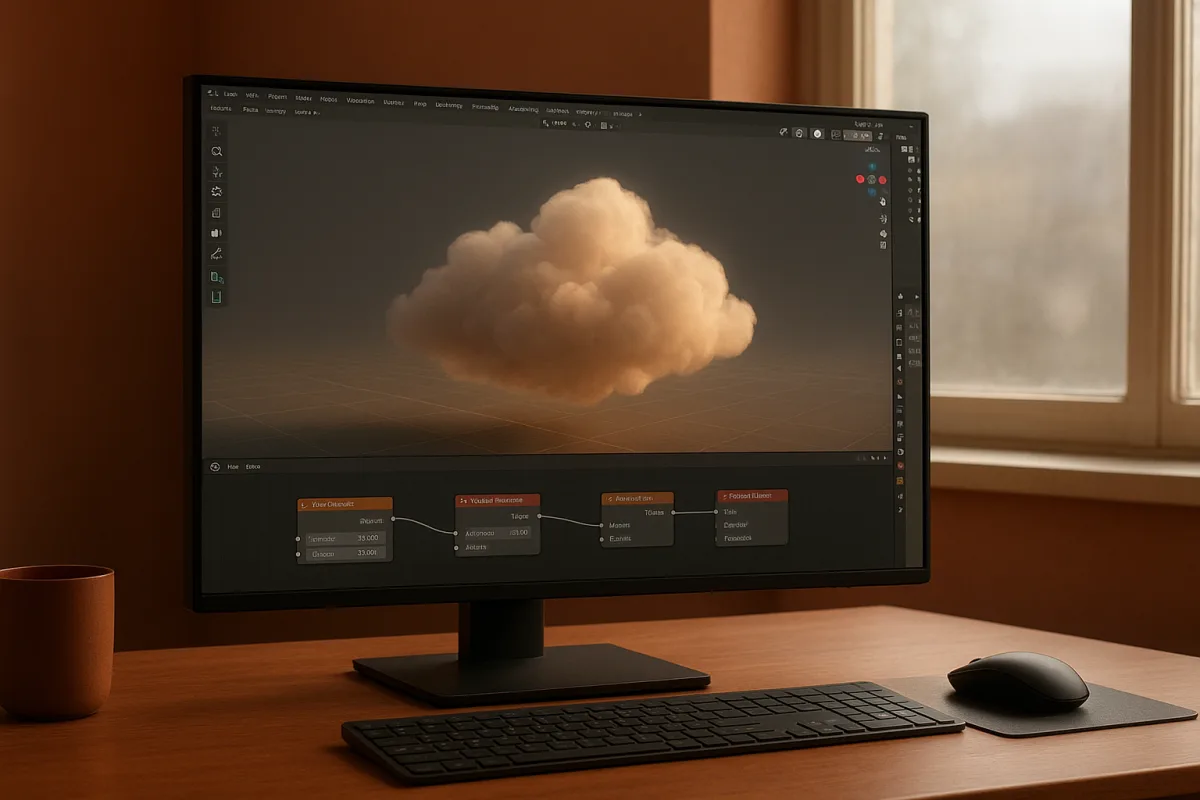
Start by choosing the cloud job, not the cloud tool
The first problem is deciding whether the sky needs to hold up in a close shot, establish a distant environment, or simply add depth behind architecture. Those are different jobs, and they do not deserve the same amount of geometry, volume resolution, or render time.
For a fixed background or wide establishing shot, image-based volumetrics can deliver strong visual quality at lower computational cost than fully procedural clouds. The trade-off is that they are less adaptable when you need changing sunlight, animation, or shot-specific reshaping. [1]
For an animated camera moving through or close past clouds, build a real volume in Blender 5.0. A procedural system gives you control over silhouette, density variation, and light response, but it is not automatically photorealistic just because it uses noise.
Blender’s procedural noise and cloud textures are useful for stylised skies and as ingredients inside a larger density network. On their own, they tend to lack the layered detail and convincing lighting interaction that a photographic cloudscape needs. [2]
That distinction matters. A cloud is not a white object with a noisy edge. It is a field of suspended water droplets, and the visual information comes from how light travels into that field, scatters, loses energy, and emerges again.
Build the large cloud form before chasing detail
In Blender 5.0, begin with a primitive mesh that establishes the overall mass. For a cumulus bank, that might mean several overlapping spheres or metaball-like lobes. For a stratus layer, use a broad, shallow shape with a long horizontal footprint.
Convert that mesh into a volume with Blender’s Mesh to Volume modifier. The modifier has been available since Blender 2.91 and is a practical starting point because it lets you art-direct the silhouette with familiar modeling tools before turning it into density. [3]
Keep this base form deliberately simple. The viewer reads the broad silhouette first, then the breakup along the edge, then the smaller internal density changes. If the large mass is wrong, adding more noise only creates a more expensive wrong cloud.
Do not model every puff as separate visible geometry and shade it like a matte surface. Lighting volumetric clouds as regular opaque objects produces a flat result because there is no meaningful internal scattering or attenuation. [4]
This is also where scene scale becomes important. A volume that is physically tiny but shaded with density values intended for a kilometre-wide cloud will go opaque almost immediately. A very large volume with weak density will read as mist, not a cloud.
There is no universal density number worth copying into every Blender file. The available guidance is qualitative because density depends on the dimensions of the volume, its voxel resolution, the lighting setup, and the look you are after. [4]
Give the volume a shader that can actually react to light
Use Blender 5.0’s Principled Volume shader as the core of the material. It combines scattering, absorption, and emission controls in one shader, which makes it the appropriate base for clouds rather than a surface Principled BSDF. [3]
For daylight clouds, scattering does most of the work. It determines how much incoming light becomes visible inside the volume. Absorption controls how quickly that light is lost as it travels deeper, which is what stops a dense cloud from looking uniformly bright.
Think of density as how much cloud material occupies space, and absorption as how much that material darkens the interior. Raising density without considering absorption often creates a blunt white-to-grey lump. Raising absorption too far can make the cloud look smoky or unexpectedly black.
Feed variation into density, not merely colour. A cloud needs dense cores, thinner outer wisps, pockets of reduced material, and soft transitions between them. A perfectly even density field looks more like fog in a box than accumulated moisture.
Use a low-frequency noise pattern to distort the overall body first. Add a second, smaller-scale noise only after the main form reads clearly. The smaller pattern should erode edges and create subtle internal unevenness, not turn the entire volume into visual static.
Clamping and remapping are common failure points. If a density texture is clamped too aggressively, the cloud develops hard, synthetic cut-offs. If it is not remapped with restraint, small noise can fill the entire volume and erase the large-scale structure. [4]
Cloudify is worth considering specifically for Blender 5.0 or later when you want a Geometry Nodes-based cloud workflow with more direct volumetric controls. It suits artists who need repeatable procedural generation, though it does not remove the need to light and scale the result properly.
I have not used every cloud add-on available for Blender, including Cloudify, so I would evaluate it as a workflow tool rather than assume it produces realism by itself. The underlying requirements remain density variation, suitable scene scale, and directional lighting.
Match the density shape to the cloud type
Cumulus clouds need a strong vertical silhouette, dense central regions, and enough direct light to reveal bright tops against darker internal pockets. Their recognisable feature is stacked, rising mass, not random spherical noise. [4]
Build cumulus from several merged forms, then convert them to volume as a group. Avoid identical lobes and evenly spaced puffs. Nature repeats patterns, but it does not arrange them with the tidy rhythm of duplicated objects.
Stratus requires nearly the opposite approach. Make it broad, horizontally extensive, comparatively thin, and softly lit. It should feel like a continuous layer with uneven density, not like a row of cumulus clouds scaled flat. [11]
Cirrus needs extremely low density and thin, stretched layers. It is a high-altitude cloud type, so broad soft indirect illumination and directional streaking matter more than deep, dramatic shadow cores. [12]
These are useful starting principles, not shader presets. Exact settings vary too much with shot scale and weather conditions for a single density, absorption, or noise scale value to be trustworthy across projects. [4]
Light the sky before tweaking the shader again
The usual next problem is that the volume technically works but looks flat. This is often a lighting issue, not a density issue. Clouds need light that travels across or through them so the volume can reveal depth.
Place the sun at roughly 30 to 60 degrees from the camera direction as a practical first setup. That angle tends to create visible internal shadows and a rim-lit edge without reducing the cloud to a uniformly backlit silhouette. [4]
A camera-facing sun can brighten the front too evenly. A sun directly behind the cloud can be beautiful, but it quickly becomes a special-effect shot with blown edges and a dark central mass. Start with the oblique angle, then push toward backlight deliberately.
Use Blender’s Sky Texture node to establish the ambient sky contribution, then add or position a Sun light for the direct component. The time of day, sun angle, weather conditions, and atmospheric context all materially affect whether the cloud belongs in the scene. [7]
Blender’s Sun Position add-on is useful when matching a real location, time, or architectural render. It suits situations where the cloud layer must agree with a known sun direction rather than simply look attractive in isolation. [14]
Do not light-test against a default grey world and judge the cloud material there. A cloud’s edges, shadow colour, and perceived density depend on the sky behind it. Test against the actual horizon, ground bounce, atmosphere, and camera exposure of the final shot.
Control render cost before it controls the project
Volumetric rendering is expensive because the renderer samples through space rather than stopping at a visible surface. The primary controls are volume resolution, raymarching quality, shadow quality, the physical size of the volume, and how much of it the camera sees.
Do not assume that realism requires blindly increasing every quality slider. Research into real-time volumetric cloud rendering found that substantial raymarching reductions, including a factor of 16 in one approach, can preserve useful visual fidelity through better optimisation strategies. [1]
That does not translate into one universal Blender setting. It does mean you should compare lower and higher volume settings in the actual shot, at final camera distance, before committing to the slowest option.
First lower detail where the camera cannot see it. A distant cloud bank does not need the same voxel density as a hero cloud crossing close to lens. Likewise, a cloud hidden behind terrain or architecture should not consume volume detail it cannot display.
Render small crops while developing. Check the illuminated edge, the transition from bright exterior to darker core, and the silhouette against the sky. Those regions reveal bad density and insufficient steps faster than judging a full-frame preview.
Hardware still matters for large volume scenes. Blender’s own requirements guidance and workstation advice commonly point toward an eight-core-or-better CPU, 32 GB or more of RAM, a CUDA, OptiX, or HIP-capable GPU where appropriate, and SSD storage for smoother scene handling. [9] [10]
Those are sensible capability targets, not guarantees of a particular render time. No universal benchmark can account for your voxel grids, lighting, render engine, samples, resolution, and available GPU memory.
Know when Blender should hand the work to another application
Blender is capable of building a convincing cloud shot, especially when the result is art-directed for a specific camera. But it is not always the best place to develop a large procedural weather system or a heavily simulated cloud asset.
Houdini 21 is the stronger choice when you need procedural generation and simulation as the central problem. Its node-based systems suit large-scale variation, repeatable setups, and effects workflows where a cloud needs to evolve rather than remain a designed static volume. [13]
ZBrush is more relevant when a project calls for high-resolution sculpted forms that may inform a volumetric conversion or a stylised cloud asset. It can enhance form development, but it is not a substitute for volumetric shading and lighting. [5]
A cross-tool workflow has no single established best practice. Export decisions depend on whether you need a mesh, volume cache, texture set, or a final rendered element, and each choice trades flexibility against storage, render cost, and editability. [5] [13]
Machine learning approaches to volumetric cloud rendering are also being researched, particularly for faster or higher-quality output. They remain experimental rather than a dependable standard production route for ordinary Blender users. [1]
Frequently Asked Questions
How do I create volumetric clouds in Blender?
Start by modeling a simple low-resolution mesh that defines the overall cloud shape, such as overlapping spheres for cumulus or broad shapes for stratus clouds. Convert this mesh to a volume using Blender’s Mesh to Volume modifier, then apply the Principled Volume shader to simulate scattering and absorption within the cloud.
What is the best way to light volumetric clouds in Blender?
Place the sun light source roughly 30 to 60 degrees away from the camera to create readable internal shadows and rim lighting. Avoid lighting clouds directly from the camera direction, as this reduces depth and internal light interaction, resulting in flat-looking clouds.
How can I add realistic density variation to clouds in Blender?
Use low-frequency noise patterns to shape the large-scale density variations first, then add smaller-scale noise to erode edges and create subtle internal unevenness. Feed these variations into the density input of the volume shader rather than color, and avoid overly aggressive clamping or remapping to preserve natural transitions.
When should I use procedural vs image-based clouds in Blender?
Use procedural clouds when you need art-directable motion, variation, or animation, especially for close or moving camera shots. Image-based volumetrics are better suited for fixed backgrounds or wide establishing shots where high visual quality is desired with less computational cost but less flexibility.
How we researched this
This article was assembled from 14 cited references.
Nothing here is based on hands-on testing. Where a figure or finding appears, it belongs to the source cited beside it, and the writing says so rather than implying otherwise. Every source is listed below so you can check it.
Sources
- Optimisations for Real-Time Volumetric Cloudscapes
- Cloud-making in Blender | BlendAtlas
- How to Easily Create Volumetric Clouds in Blender 2.91 - BlenderNation
- Realistic Clouds in Blender: Best Techniques for Volumetrics
- ZBrush vs Blender: Which Is Better for Sculpting in 2026? - Blog - Meshy
- 7 mistakes Blender users make when trying to render faster.. - Blendergrid
- Exterior Rendering Tips: Daytime & Nighttime Architectural Visuals (2026) | Archgyan
- Real Sky - Blender
- Requirements — Blender
- How to Speed Up Blender Render Times
- Clouds - PlanetSet Docs (Beta)
- shaders - How to create high altitude clouds? (cirrus and cirrocumulus) - Blender Stack Exchange
- 3D Modeling Tools 2026 — Blender 4.4 / Houdini 21 / Maya / ZBrush / Substance / USD / 3D AI Deep Dive — TT Lab Blog
- Sun Position — Blender Manual
Related Articles
Realistic Clouds in Blender: Best Techniques for Volumetrics
Learn the best techniques for creating realistic clouds in Blender using volumetric shaders, procedural noise, and lighting tips.
Realistic Fire Effect in Blender
Learn how to create a realistic fire effect in Blender using Mantaflow, shaders, lighting, and simulation tips for photorealistic results.
Create Realistic Environment in Blender: Step-by-Step Guide
Learn how to create a realistic environment in Blender with tips on terrain, texturing, lighting, and scale for believable 3D scenes.
Realistic Water in Blender
Learn the best techniques for creating realistic water in Blender using Ocean Modifier, fluid sims, and layered shading for stunning results.