
Realistic Clouds in Blender: Best Techniques for Volumetrics
Learn the best techniques for creating realistic clouds in Blender using volumetric shaders, procedural noise, and lighting tips.
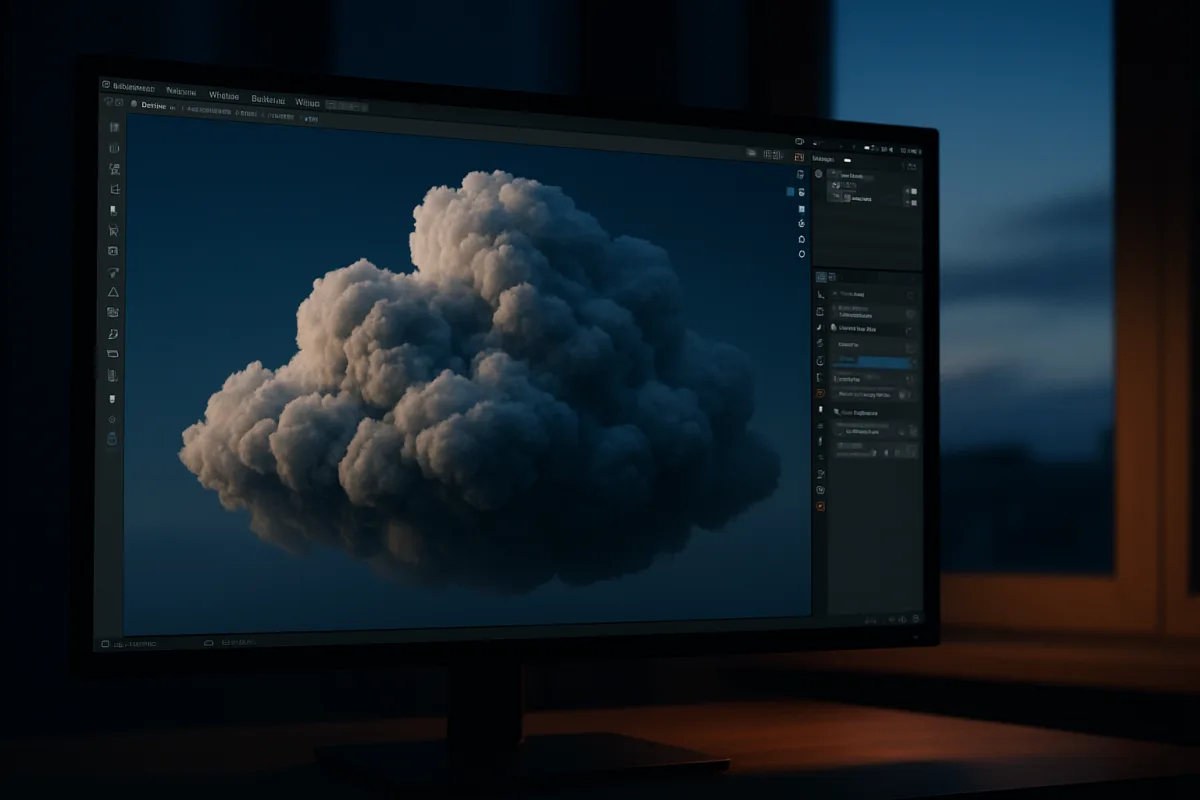
The cloud setting that actually matters: density along the light path
When artists say a CG cloud looks flat, the problem is often not the noise texture. It is that the cloud has no convincing change in density along the path between the sun, the cloud, and the camera.
For this article, I am using Blender 5.0 terminology, particularly Cycles volume shaders and Eevee volumetric controls. Blender’s interfaces move often, but the underlying question remains the same: how much participating material does light travel through?
A surface shader describes light hitting an outer skin. A cloud is different. Light enters it, scatters through suspended droplets or ice crystals, is partly absorbed, then may emerge in another direction toward the camera.
That makes density the central artistic control. In Blender’s Cycles workflow, Volume Scatter determines how light is redirected through the volume, while Volume Absorption removes light as it travels through it. [1]
A low-density region is visually thin. It lets sunlight reach deep into the cloud and tends to read as a glowing edge, a broken wisp, or a sunlit gap. A dense region blocks and redirects more light.
The important word is region. A realistic cloud does not need one globally correct density value, because real clouds are not evenly filled boxes. It needs a believable distribution of thick cores, thinning edges, voids, and overlapping lobes.
Why a white volume can still render gray
Cloud artists understandably begin with white or slightly warm scattering colour. Then they increase density until the form appears, and the cloud becomes dull gray. That result is not necessarily a shader mistake.
A thicker cloud gives the camera less direct, unattenuated light to see through. It also creates longer internal paths, so more light is scattered away or absorbed before it reaches the visible side of the volume.
That is why a convincing bright cumulus cloud usually has two things at once: dense enough centers to cast soft internal shadow, and less dense outer areas that catch sunlight. Pure whiteness is not the mechanism.
In Blender 5.0 Cycles, use scattering colour to set the general character of illuminated material, then use absorption carefully to control how rapidly dense areas lose light. Blender Guru’s Cycles Shader Encyclopedia identifies density, anisotropy, and colour as the main levers. [1]
Absorption is particularly useful when a cloud looks overexposed or uniformly luminous. Raising it modestly lets a core go darker without having to make every part of the cloud so dense that its silhouette turns into a hard, opaque blob.
This is a relationship, not a recipe. The required balance changes with exposure, the strength and colour of the sun, the scale of the cloud object, and whether the camera sees it against a bright sky or dark storm front.
Anisotropy is not a detail slider
Anisotropy controls the preferred direction of scattering. It tells the renderer whether light moving through the cloud is likely to continue broadly forward, scatter backward toward its origin, or spread more evenly in all directions.
For clouds, this matters because sunlight is directional. A volume with forward-biased scattering can appear much brighter when viewed in a direction near the light path, producing the familiar silver lining or glowing sunset edge.
Push anisotropy too far, however, and the cloud can become view-dependent in an unhelpful way. It may look convincing from one framing, then lose body or flare excessively as the camera or sun rotates.
This is why I would judge anisotropy using the actual shot camera, not a detached material preview. The material is inseparable from the lighting direction, the intended time of day, and the camera’s relationship to the sun.
Blender’s developer documentation also makes the broader point that volume quality and rendering cost are linked to how rays travel and sample through participating media. [13] That is the technical reason clouds become expensive before they become polished.
Shape the density field before adding detail
The practical technique is to make a large, readable density field first. In a cumulus cloud, that usually means several broad masses merging into a larger body, with a flattened or shadowed underside and irregular rising tops.
BlendAtlas’s cloud-making guidance uses procedural Clouds textures with controls including type, size, and depth, feeding a volume workflow. [2] The useful idea is not the historical texture name, it is working at more than one spatial scale.
The largest noise establishes weather-scale structure. It answers whether this is a broad stratus layer, a compact fair-weather cumulus, or a vertically developed storm cloud. At this stage, avoid chasing tiny cauliflower detail.
A second, smaller noise layer breaks the outline and varies the density within the mass. This creates pockets where light can penetrate and adjacent regions where the accumulated density is high enough to produce visible shadow.
A third layer can add fine erosion, but it should remain subordinate. If high-frequency noise dominates, the result often resembles foam, cotton, or a procedural displacement test rather than water vapour organized by larger atmospheric forces.
This layering is a habit, not a law. A distant cloud bank may need only broad structure because small features disappear at its screen size. A close aerial shot needs more internal variation, but only where the camera can resolve it.
Geometry Nodes can make this system more controllable by distributing, combining, or masking density sources procedurally. DIGITAL PRODUCTION’s coverage of the Sky system describes a Geometry Nodes-based cloud and atmosphere workflow built around volumetric clouds. [3]
That approach suits artists who need weather parameters, procedural placement, or repeated shot revisions. A baked VDB can suit a locked asset or simulation, but it trades some flexibility for a volume already resolved into voxel data.
Domain size and resolution decide whether detail survives
If your cloud comes from a fluid-style simulation or a voxelized volume, resolution does not mean “more realism” in isolation. It means smaller voxels within a fixed domain, which can preserve smaller density changes.
Blender’s fluid guidance gives useful broad starting bands: a 1 to 2 metre domain may use 64 to 128 resolution divisions, a 10 to 20 metre domain 128 to 256, and a 50 to 100 metre domain 256 to 512. [13]
Those ranges are not cloud presets. They are a way to understand scale. If a domain doubles in physical size while resolution stays fixed, each voxel becomes larger and the delicate erosion that made the cloud feel soft can disappear.
Conversely, expanding both domain size and resolution is expensive. More voxels mean more data to generate or store, more fine variation for the renderer to sample, and more opportunities for noise in a path-traced volume.
The first optimization is almost always to shrink the domain to the visible cloud and its necessary movement. Do not simulate or render an enormous empty cube merely because the sky is large.
For an establishing shot, use a thin or distant volume where the camera cannot inspect it closely. Reserve dense, high-resolution fields for the cloud mass that silhouettes against the sun or occupies a meaningful part of the frame.
Light reveals density, it does not replace it
A cloud with good density structure can still look dead under frontal lighting. The camera sees roughly the same brightness across its face, so the internal variations have little opportunity to describe form.
HDRI Hub’s Blender lighting guidance recommends sun angles around 30 to 60 degrees for stronger shadow definition, while rotating an HDRI changes the apparent time of day and weather character. [4] That is particularly useful for cloud look development.
Side light lets neighboring density regions separate into lit, transitional, and shadowed areas. Light from slightly behind creates rim illumination where the ray passes through a thinner edge before it reaches the camera.
An HDRI can provide the broad blue skylight that prevents shadowed cloud areas from becoming empty black. The sun or a directional key then supplies the readable directionality. Those two roles are more useful than simply increasing world brightness.
Match that setup to the weather story. The research brief notes that winter clouds tend toward denser, grayer appearances, while summer clouds can appear lighter and brighter. Tropical skies may support towering cumulonimbus forms, while polar scenes favour thinner wisps.
There is no evidence-backed table that converts “winter” into one density value or “tropical” into one anisotropy value. Use reference, then make the lighting, mass, and colour agree with the geography rather than treating seasonal labels as presets.
Rendering: the price of sampling a thick cloud
Cycles is the better choice when physical light transport through the cloud is the priority, but it pays for that accuracy in render time. Eevee is faster, though its volumetric result is a practical approximation rather than equivalent path tracing. [13]
In Eevee, volumetric resolution, step count, distribution, and maximum depth determine how the renderer samples the volume. Too few steps can lose fine density variation, cause banding, or make thin cloud edges appear to pop. [13]
In Cycles, insufficient samples often show up as noisy volume shadow and unstable soft gradients. Raising samples can improve the result, but it is not free, and denoising may soften exactly the small variations that make a cloud feel three-dimensional.
Blender Studio’s Blender 4.5 LTS render training recommends balancing samples, denoising, and volume quality settings rather than assuming that one control solves noise. [12] That advice remains relevant when working in Blender 5.0.
Use a large step size only when the cloud occupies few pixels or has intentionally soft structure. For closer work, reduce the step size enough to preserve the density transitions that create the cloud’s light and shadow.
Check the cloud at final framing and exposure. A render can look clean in a bright viewport yet clip to featureless white in the grade, or appear plausibly detailed at 100 percent while its fine noise vanishes in the delivered resolution.
Tools that help around the workflow, not cloud creation itself
There is no well-documented, dedicated cloud add-on in the supplied research with comparable pricing and learning data. The available products are general workflow tools, so none replaces a sound density, lighting, and render-sampling setup.
BlenderGPT, an AI-assisted Blender prompt tool covered by YesChat, is listed at $14 per month on annual billing. [5] It suits artists who want text-assisted help with general Blender tasks, not a physically grounded cloud generator.
RanTools is a $18.90 bundle listed by the Superhive marketplace, including tools for booleans, materials, HDRIs, and lighting. [6] Its HDRI and lighting components may support scene setup, but it is not a cloud-volume system.
HardOps is listed in the $20 to $100 range by Project LEUC and Blender Artists Community discussions. [7][8] It suits advanced hard-surface modeling workflows and has a steep learning curve, making it largely peripheral to sky work.
Flip Fluids is also listed in the $20 to $100 range in the research brief and is aimed at advanced fluid simulation. [9] It may interest artists studying voxel domains and simulation logic, but it is not a direct substitute for atmospheric cloud shading.
KeyShot 2026 is a standalone renderer with Blender integration, priced at $1,299 per year according to Creative Bloq’s review. [10] It suits artists needing a separate rendering pipeline and AI-assisted features, not Blender-specific volumetric cloud authoring.
Those prices are software or subscription costs only. They do not include workstation upgrades, render hardware, storage for baked volumes, render-farm time, or the production time needed to tune a cloud for a specific shot.
Frequently Asked Questions
How do I create realistic clouds in Blender using volume shaders?
Realistic clouds in Blender are created by treating clouds as controlled fields of density rather than solid white objects. Use volume shaders like Volume Scatter and Volume Absorption in Cycles to simulate light scattering and absorption through the cloud’s density field. Adjust scattering color for the illuminated character and absorption to control how quickly dense areas darken, balancing these settings according to scene scale, lighting, and exposure.
What are the best techniques to shape cloud density in Blender?
Start by shaping a large, readable density field representing broad cloud masses, such as merging lobes with varied thickness and shadowed undersides. Then layer smaller procedural noise textures to break up the silhouette and add pockets of varying density. Use multiple spatial scales of noise—large-scale for overall shape, medium for internal density variation, and fine detail for erosion—while avoiding chasing tiny detail too early.
How does anisotropy affect cloud rendering in Blender?
Anisotropy controls the preferred direction of light scattering inside the cloud, influencing how light is redirected forward, backward, or evenly. Forward-biased anisotropy can create effects like silver linings or glowing edges near the light source direction. However, excessive anisotropy may cause the cloud’s appearance to change unnaturally with camera or sun movement, so it should be judged within the actual shot’s lighting and camera setup.
How can I optimize volumetric cloud rendering in Blender?
Keep volumetric domains only as large as necessary for the shot to limit simulation and memory costs. Increasing domain size or voxel resolution raises render times exponentially. Avoid searching for universal presets for density or step size; instead, tailor settings to your scene’s scale, sun angle, and exposure. Balancing volume quality with performance requires experimentation and scene-specific adjustments.
What lighting setups enhance the realism of clouds in Blender?
Light clouds from the side or slightly behind the camera, roughly 30 to 60 degrees from the camera view. This setup creates internal shadows and rim lighting that define cloud thickness and volume. Directional sunlight combined with appropriate anisotropy settings helps reveal cloud structure and produces natural effects like glowing edges and soft shadows within the volume.
How we researched this
This article was assembled from 14 cited references.
Nothing here is based on hands-on testing. Where a figure or finding appears, it belongs to the source cited beside it, and the writing says so rather than implying otherwise. Every source is listed below so you can check it.
Sources
- The Cycles Shader Encyclopedia — Blender Guru
- Cloud-making in Blender | BlendAtlas
- Sky: Geometry Nodes-Based Volumetric Cloud and Atmosphere System for Blender | DIGITAL PRODUCTION
- Blender HDRI Lighting: Sun, Shadows & Lighting Only | HDRI Hub
- Blender GPT-Free, AI-powered Blender Assistance
- Amandeep - Ultimate Value Bundle (15 Addons) - Superhive (formerly Blender Market)
- Best Blender Add-ons Under $20 (2026) | Project LEUC
- Hard Ops Thread - Page 195 - Released Scripts and Themes - Blender Artists Community
- Blender or Maya in 2026 – which one fits your 3D work? - Toxigon
- KeyShot 2026 review: fast, easy 3D rendering and with AI tools you might actually use
- World Environment — Blender Manual
- Render Settings - Blender Fundamentals 4.5 LTS - Blender Studio
- Cycles - Blender Developer Documentation
- Is Blender AI? 2026 Software Guide
Related Articles
Realistic Fire Effect in Blender
Learn how to create a realistic fire effect in Blender using Mantaflow, shaders, lighting, and simulation tips for photorealistic results.
Realistic Water in Blender
Learn the best techniques for creating realistic water in Blender using Ocean Modifier, fluid sims, and layered shading for stunning results.

Create Realistic Sky in Blender
Learn how to create a realistic sky in Blender using procedural textures, HDRIs, and sun direction for believable outdoor lighting.
Realistic Hair Techniques in Blender: Guide to Particle Hair
Learn realistic hair techniques in Blender using particle systems, guide hairs, and grooming tools for natural, believable hairstyles.