
Blender Character Animation Tutorial: Rigging to Posing
Learn Blender character animation with rigging, weight painting, posing, and timing in this step-by-step tutorial for Blender 5.2 users.
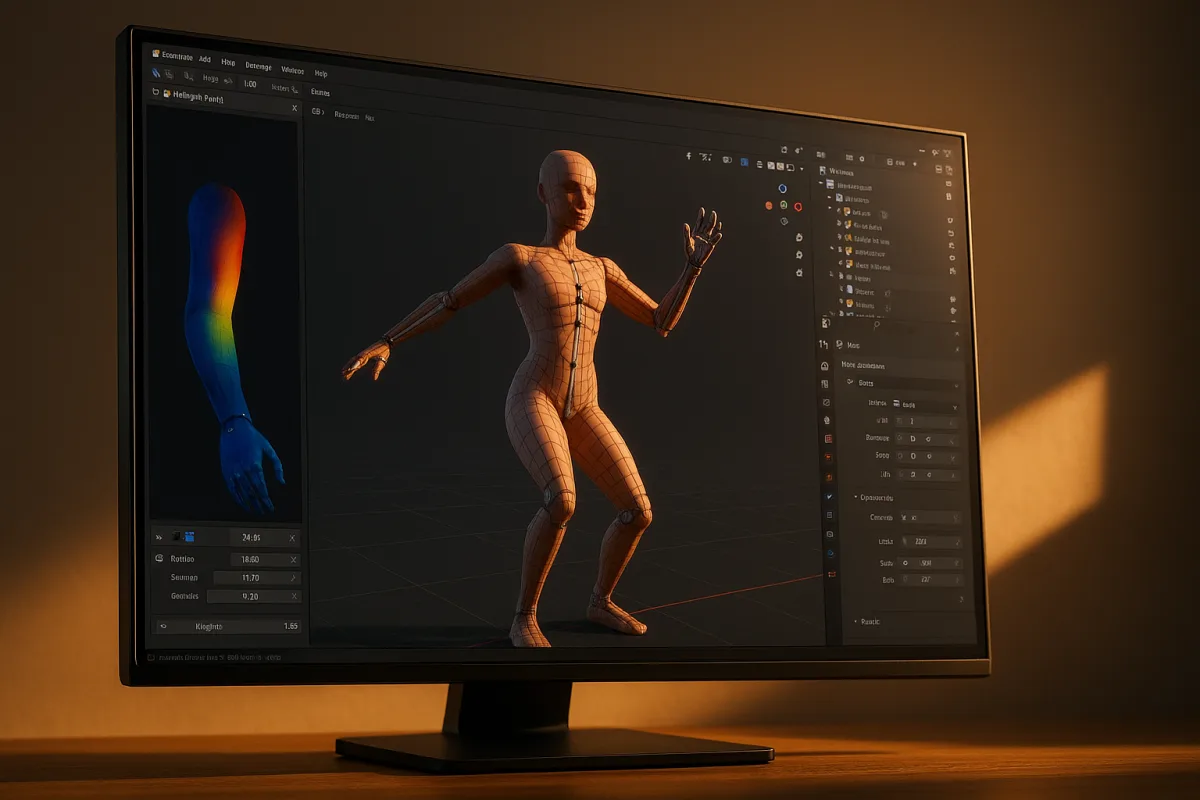
Start with a character that can survive rigging
I am working in Blender 5.2 LTS for this guide. The visible animation work starts with posing, but the first problem usually arrives earlier: a mesh that looks fine in a still render and deforms badly the moment an elbow bends.
Before adding bones, finalize the mesh you intend to animate. Apply transforms and put the character’s object origin at the feet. Those steps make the armature’s scale, placement, and later controls more predictable. [1][2]
This is not a claim that every character must be completely finished before animation. Production meshes can change. It is a practical habit: avoid changing overall scale and object transforms after weights and animation exist, because you create another source of errors.
Check the mesh for non-manifold areas, duplicate vertices, and stray unconnected pieces before parenting it. These are recurring causes of automatic-weight failures and odd paint results, especially when Blender cannot interpret which volume belongs to which limb. [7][8]
Topology matters here because weights are distributed over vertices. A knee with deliberate edge flow and enough geometry to compress has somewhere to deform. A knee built from long, sparse polygons may technically follow the bone but will crease unpredictably under rotation.
The research brief does not support prescriptive edge-loop counts, so I would not invent one. What it does support is cleaning geometry before skinning, rather than trying to paint around bad transforms, duplicate vertices, or non-manifold topology afterward. [6][7]
Choose the rigging route before building controls
For a standard biped, Blender’s included Rigify system is the sensible first route. In Blender 5.2 LTS, it begins with a humanoid meta-rig that you fit to the mesh, then generates a more animator-friendly control rig. [10][15]
Fit the meta-rig carefully at shoulders, pelvis, knees, elbows, wrists, ankles, and the head. Bone placement is not cosmetic. A poorly placed joint asks weight painting to compensate for a skeleton that does not match the character’s actual pivot.
Rigify speeds up conventional rig creation, but it is not automatically the best rig for every character. The Blender documentation and the research brief qualify that assumption: specialized anatomy and custom behavior can need a manually built armature. [10][15]
Use a manual rig when the character is not close to a normal humanoid, or when its performance depends on controls Rigify does not provide in the form you need. That route takes longer and assumes stronger rigging knowledge, but gives direct control over structure. [10]
Do not treat “manual” and “automatic” as opposing quality levels. Rigify is a production shortcut for repeated, familiar rig problems. Manual rigging is the better tool when the character itself is the exception, not when you simply want more things to click.
Parent the mesh, then assume the first weights are wrong
Once the armature is in place, parent the mesh to it with automatic weights. Blender will assign vertex groups based on the bones, providing a working starting deformation for many characters. [1][2]
That phrase, starting deformation, matters. Automatic weights often need manual adjustment at tight joints and complex forms. A shoulder, crotch, elbow, knee, wrist, fingers, and facial area can all reveal that a mathematically plausible assignment is not an appealing deformation. [6][10]
Immediately make a few brutal test poses rather than admiring a neutral stance. Raise the arms, bend elbows fully, squat deeply, rotate the torso, twist wrists, and lift each leg. These poses expose problems long before you have spent a day animating.
If a vertex is left behind, first check whether it has been assigned to a vertex group. If motion pulls a region between several bones in an unstable way, check weight normalization and repaint the competing influences. [6][8]
Weight normalization matters because a vertex needs a coherent total influence across its groups. Incorrect normalization can produce inconsistent movement, while unassigned vertices do not follow the armature properly at all. [6][8]
Use mirrored weight painting where the character is symmetrical. It is faster than repainting both sides and reduces the chance that one knee behaves differently from the other for no intentional reason. Asymmetry can come later when performance demands it. [6]
This is one of those habits rather than rules. A deliberately asymmetrical character may need different weights on each side. The point is to make asymmetry a performance or design choice, not an accidental consequence of forgetting to mirror paint.
Add IK where contact needs to stay planted
Inverse kinematics is particularly useful when a hand or foot must remain in contact with something. Rather than rotating every leg bone separately, you position an IK target and let the chain solve toward it. [1][2]
For a basic walk, use foot controls to keep planted feet stable while the body passes over them. For a reach, use a hand target when the palm must stay on a table, wall, or prop. These are contact problems, which is what IK solves well.
Test IK controls before animation begins. Move the targets through a usable range and inspect knees and elbows for undesirable bending direction. A rig is only animation-ready when it can be posed clearly and repeatedly, not when bones merely exist. [1][2]
Decide timing before you make a hundred keys
Choose the project frame rate before blocking an action. MediaScaleUp notes that 24 FPS is a film convention, while games commonly use 30 or 60 FPS. The right choice depends on where the animation will play. [3]
Do not import pixel-art frame counts as a rule for a 3D Blender character. ImageMint and Spritesheets.ai discuss short sprite cycles and low frame rates for a different medium, so those figures are useful context, not a 3D animation template. [4][5]
A walk, run, idle, and attack do not have universal frame counts. Style, intended speed, camera distance, and the medium all change the answer. Establish the project’s playback requirements first, then make timing choices that serve that requirement. [3][4]
Begin with the storytelling poses: contact, passing, recoil, anticipation, or whichever poses define the action you are making. Put keys on the rig controls rather than trying to key every deform bone, because controls are the layer designed for animation.
At this stage, keep the motion readable in stepped or simple interpolation. You are checking whether the character’s weight shifts, contacts, and intent make sense. Polished curves cannot rescue an unclear sequence of poses.
Fix spacing and easing in the Graph Editor
Once the pose sequence works, open Blender 5.2 LTS’s Graph Editor. This is where animation stops being a list of frames and becomes editable motion, represented by function curves for each animated channel. [11][15]
Use interpolation deliberately. Linear interpolation produces even changes between keys, while Bezier curves allow acceleration and deceleration through handle shaping. Neither is universally more natural. The character’s intended movement determines which spacing makes sense. [11]
A hand reaching a target may ease out as it settles. A sudden mechanical slide may need a more linear rate. A jump needs clear changes in speed, because believable motion rarely travels through space at a constant velocity from launch to landing. [11]
Blender’s Graph Editor also provides easing presets and tools such as Blend to Neighbor for reshaping a key’s relationship to nearby keys. These are useful after the action is blocked, when you can see what timing needs correction. [11]
Turn on Motion Paths when you need to inspect where a control or bone actually travels. A hand may hit its key poses while drifting through an unintended arc between them. The path makes that error visible in the viewport. [11]
Do not polish every curve in isolation. Watch the whole character. If the hips, chest, head, and hands all ease at exactly the same moment, the result can feel mechanically synchronized even though every individual curve is smooth.
Build reusable actions, then combine them in NLA
When an action such as an idle, walk, or run is usable on its own, store it as an Action rather than burying it inside one long timeline. Blender’s Non-Linear Animation editor, or NLA, is designed to arrange and blend these animation units. [12][14]
In the NLA Editor, put actions on tracks as strips. This lets you repeat a cycle, arrange one action after another, and overlap strips for transitions rather than re-keying the entire character whenever a sequence changes. [12][14]
Blender provides Replace, Combine, and Additive strip blending modes, plus influence controls that determine the strength of a strip. These are the basic tools for combining cycles and layering additional motion. [12][14]
For example, a base locomotion action can remain on one track while a secondary motion layer adds part of an upper-body adjustment. Reduce the layered strip’s influence if it overpowers the underlying performance. [12][14]
The sources support the modes and influence controls, but not a single definitive advanced NLA recipe. Treat NLA blending as something to test in context, particularly where overlapping actions both affect the same controls. [12][13][14]
Watch transitions closely. The problem is often not that either action is bad. It is that the outgoing and incoming poses disagree at the blend point, causing feet to slide, hips to pop, or arms to snap through space.
Keep the viewport responsive enough to judge movement
Character animation is interactive work. If playback stalls, you will judge timing from fragments rather than motion. Blender’s official system requirements should be your baseline compatibility check for the operating system and graphics support. [9]
For heavier character scenes, the research brief recommends at least an eight-core CPU, 32 GB of RAM, and a GPU with 8 GB of VRAM. More demanding work benefits from 12 to 16 CPU cores, 64 GB RAM, and 16 to 32 GB VRAM. [9]
Those figures are workflow guidance, not a guarantee that every scene needs the same machine. A single rigged character is unlike a crowded scene with high-resolution meshes, simulation caches, many textures, and a demanding viewport shading setup.
If playback is slow, do not assume the animation is the sole cause. Rig complexity, mesh density, modifiers, and scene content all affect responsiveness. The practical goal is straightforward: make the scene light enough that you can judge timing at the intended frame rate.
Frequently Asked Questions
How do I rig a character for animation in Blender 5.2?
Start by finalizing your character mesh with clean geometry, applied transforms, and the origin placed at the feet. Then create and position an armature—using Blender 5.2 LTS Rigify’s humanoid meta-rig for standard bipeds—and parent the mesh to the armature with automatic weights. Finally, manually adjust weight painting, especially around joints, and test the rig through posing. [1], [10]
How do I fix automatic weight painting issues in Blender rigging?
Treat automatic weights as a first pass rather than a finished result. Test deformations at shoulders, hips, elbows, knees, and hands, then manually repaint weights in problem areas. Also, ensure your mesh has no duplicate vertices, non-manifold geometry, or stray pieces, as these cause automatic weight failures. [6], [7]
When should I use Rigify vs manual rigging in Blender?
Use Rigify for conventional humanoid characters to speed up rig creation with its meta-rig and pre-built controls. Choose manual rigging when your character has unusual anatomy or requires custom controls that Rigify does not provide. Manual rigging takes more time and expertise but offers greater flexibility for specialized rigs. [10], [15]
How do I set up frame rate and timing for character animation in Blender?
Set your frame rate before animating based on the delivery medium: 24 FPS is standard for film, while games often use 30 or 60 FPS. Block out poses and timing first, then refine animation curves using Blender’s Graph Editor to control acceleration, deceleration, and smooth transitions between keyframes. [3], [11]
How we researched this
This article was assembled from 15 cited references.
Nothing here is based on hands-on testing. Where a figure or finding appears, it belongs to the source cited beside it, and the writing says so rather than implying otherwise. Every source is listed below so you can check it.
Sources
- How to Rig a Character in Blender: Step-by-Step Tutorial for Beginners - Pixel Pastry Studios
- Rigging basics: moving a character with a skeleton (armature) | AZTechnology
- Frame Rate and Timing for Animation, Done Properly | MediaScaleUp
- Choosing Frame Rates for Sprite Animation | ImageMint
- How Many Frames for Walk, Run, Idle and Attack Sprites? | Spritesheets.ai
- RigCraft Studio | Whop
- Blender 2.8 Rigging Automatic Weights Not Working? Fix It Fast
- Solutions for Common Weight Painting Issues in Blender
- Requirements — Blender
- How to Rig a Character in Blender (2026): Rigify, Manual Armatures, and the One-Click Route | Cinevva
- Graph Editor - Blender Fundamentals 4.5 LTS - Blender Studio
- Introduction - Blender 5.2 LTS Manual
- NLA Editor and existing animation - Blender Stack Exchange
- NLA - Blender Developer Documentation
- Basic Usage - Blender 5.2 LTS Manual
Related Articles
Animate Facial Expressions in Blender: Topology and Workflow
Learn how to animate facial expressions in Blender with topology tips, shape keys, rigging, and lighting for realistic results.
Best Practices for Rigging in Blender
Learn best practices for rigging in Blender, including weight painting, topology, and normalization for smooth character deformation.

Animate Walk Cycle in Blender: Step-by-Step Guide
Learn how to animate a walk cycle in Blender with key poses, IK rig setup, timing tips, and using Dope Sheet and Graph Editor for smooth animation.
Create a Character Rig in Blender: Step-by-Step Guide
Learn how to create a character rig in Blender with bone placement, weight painting, and testing for smooth animation.