
Create PBR Materials from Scratch: A Practical Guide
Learn how to create PBR materials from scratch with correct texture maps, workflows, and software tips for realistic 3D rendering.
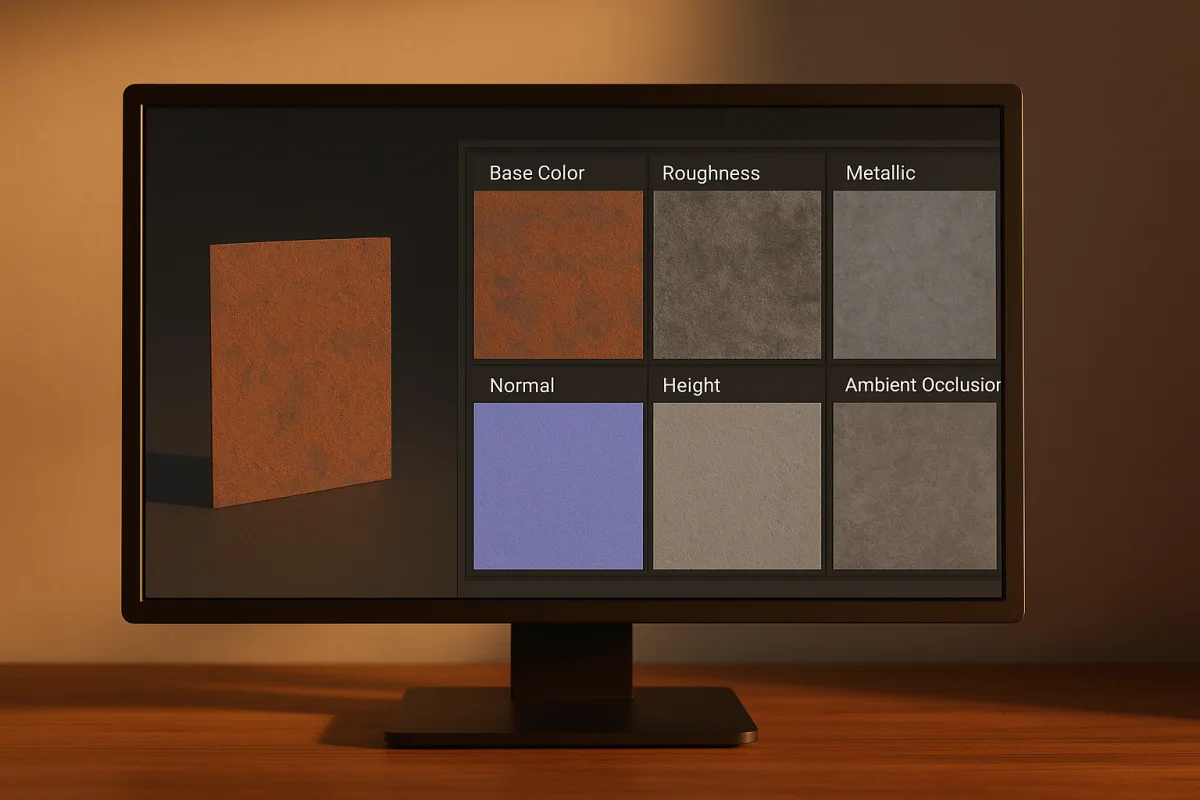
Start by deciding what the surface is made of
The first beginner problem is not a missing node or an incorrect export preset. It is trying to make a “cool material” before deciding what the object is physically made from.
PBR, meaning physically based rendering, works best when the maps describe surface behaviour. Painted steel, raw aluminium, varnished wood, glazed ceramic, rubber, and dusty concrete can all be brown or grey, but they should not share the same roughness or metallic response. [1][13]
Before opening Blender 4.5 LTS or Substance 3D Painter, write down three things: the base material, any coating over it, and the wear or contamination sitting on top. That small classification prevents a lot of random slider work.
For example, a scratched painted toolbox is not “blue metal with scratches.” It is metal underneath, an opaque painted coating above it, exposed metal where paint has failed, and perhaps dusty recesses. Each condition needs a different map contribution.
This is also where beginners often misuse Metallic. Metalness is not a general shininess control. The metallic-roughness workflow treats most common materials, including plastic, stone, wood, skin, paint, and fabric, as non-metals with Metallic set to 0. [6][12]
Give the texture somewhere sensible to live
You will hit UV problems before sophisticated shading problems. A procedural material can avoid UVs for some objects, but any painted label, directional grain, baked normal detail, or hand-authored wear needs stable coordinates.
Poor UV mapping stretches brushwork and texture detail, then makes otherwise correct maps look wrong. The research brief identifies UV distortion as a common PBR failure because a roughness pattern or normal detail must stay proportionate across the object. [4][5]
Keep islands consistent in texel density unless the asset has a deliberate reason not to be. A small hidden underside does not need the same map area as a close-up front panel, but a visible door should not have ten times sharper scratches than its frame.
Place seams where the real object has a break, a corner, a weld, a panel edge, or an unseen underside. That is partly practical and partly a production habit, not an immutable rule. A clean cylindrical prop may need a seam somewhere.
Choose Blender or Substance Painter for the actual job
In Blender 4.5 LTS, the Principled BSDF is a unified shader that lets you assign maps, light the asset, and see the render response in one scene. It is a sound choice for straightforward procedural work and quick render feedback. [2]
Substance 3D Painter is better suited when the job is specifically painting and building texture layers. Its workflow centres on brushes, smart materials, masks, and non-destructive texture creation, then exports maps for the renderer of choice. [3]
Neither application changes the underlying PBR rules. The same Base Color, Roughness, Metallic, Normal, Height, and Ambient Occlusion information remains useful whether the final render is in Blender, a game engine, Marmoset Toolbag, or another renderer. [1][3]
Use Blender when shader experimentation and scene lighting are the bottleneck. Use Substance 3D Painter when you need controlled hand-painted masks, repeatable layered wear, or extensive surface variation. Trying to force every task into one application is usually slower.
Build the six maps in a useful order
Start with Base Color, sometimes called Albedo. This is the surface colour without lighting, highlights, baked shadows, or ambient darkening. It should describe pigment, dye, mineral colour, oxidation, or the inherent colour of the substance. [1][4]
The practical trap is painting shadows into Base Color because a reference photograph looks dark in crevices. That turns lighting information into texture data, then your render adds real shadows on top. The result is a material that looks permanently dirty or crushed.
Next build Roughness. Roughness controls how broadly reflected light spreads, running from 0 for a mirror-like surface to 1 for a fully diffuse response. It is generally the map that makes a basic material start reading as real. [6][7]
Do not make Roughness uniformly grey unless the surface genuinely has a flawless coating. Even factory-made materials contain subtle variation from brushing, moulding, handling, dust, oil, water marks, abrasion, or changes in the coating itself. [7]
Build Metallic after Roughness, not before. Use black, value 0, for non-metals and white, value 1, for exposed metal. Intermediate values exist for transitional situations, but they are rare and are not a good default for ordinary material authoring. [6]
That distinction matters because metal reflects its own Base Color and has very little diffuse response. A non-metal retains diffuse colour and produces white specular highlights, which is why a grey plastic panel and a grey steel plate behave differently under identical lighting. [6][13]
Normal maps add the small directional bumps that catch highlights without changing the actual silhouette. Use them for pores, machining marks, fabric weave, shallow dents, and fine grain that would be inefficient to model as geometry. [1][4]
Height, also called displacement information, is for relief with genuine depth. Use it where the surface needs to affect silhouette or cast self-shadowing at close range, rather than expecting a normal map to create deep chipped paint or engraved lettering. [1][2]
Ambient Occlusion is the map to handle most carefully. It can support contact darkening in recesses, but baking it into Base Color often causes double darkening once the renderer calculates actual ambient occlusion and shadows. [11][13]
In Blender 4.5 LTS, treat AO as deliberate supporting information rather than a map that must always be multiplied into the colour. If you use it, check the material under several lighting conditions to ensure cavities are not becoming unnaturally black.
Set colour spaces before judging the result
Base Color is colour data, so it should use sRGB interpretation. Its stored pixel values need conversion into the renderer’s working space before the shader uses them. This is normal colour-management behaviour, not an optional look adjustment. [2][11]
Roughness, Metallic, Normal, Height, and Ambient Occlusion are numerical data maps. Set those to Non-Color in Blender 4.5 LTS, so Blender does not apply an sRGB curve and change the values driving the shader. [2]
A roughness map interpreted as colour no longer delivers the roughness values you authored. A normal map treated as sRGB also produces incorrect directions, which can show up as oddly inflated detail, broken highlights, or lighting that appears to come from the wrong side. [11]
Do not compensate for this with a darker Base Color or stronger lights. Gamma and colour-space mistakes affect the meaning of the texture data itself, so compensating by eye tends to create a material that only works in one scene. [11]
Add variation with a physical reason
When creating maps from scratch, avoid scattering random noise over every channel. Start from the manufacturing process and the way the object has been used. A brushed metal surface needs directional variation, while moulded plastic often needs softer, less directional change.
Put handling wear where hands, tools, latches, and moving parts contact the object. Put dust in horizontal recesses and grime near joints or drainage paths only when the object’s context supports it. The pattern should explain itself.
This is a habit I teach rather than a universal rule: make a roughness-only preview before adjusting Base Color. If the object still reads as a plausible surface in neutral grey, the reflectance structure is doing useful work.
Beginners frequently try to repair an overly sharp reflection by darkening Base Color. That changes the object’s pigment rather than its micro-surface. Adjust Roughness first, then reassess whether Metallic has been assigned correctly. [7][11]
Choose texture resolution from the shot, not ego
Texture resolution should follow screen size and expected inspection distance. The established guide is 512 by 512 for small or distant game assets, 1K for medium assets, 2K for close game assets, and 4K for game hero assets. [5]
For film-quality work, 4K to 8K textures are commonly used, with 8K reserved for hero assets where the camera can expose pixelation. That extra detail is not free, because texture memory and processing demands increase with every larger map. [5]
A 4K Roughness map is not automatically better than a 2K one. If its only variation is broad handling polish and soft dirt, the additional pixels may contribute nothing visible. Spend resolution where the camera can resolve meaningful information.
Light the material before you trust it
A material cannot be evaluated in a black viewport or under a single dramatic coloured key light. PBR materials are defined partly by their response to the environment, so poor test lighting can make good maps appear wrong. [8][9]
For outdoor assets, use a partly cloudy HDRI with an unclipped sun. For interiors or softer product evaluation, an overcast HDRI creates diffuse illumination that makes broad roughness changes and subtle normal detail easier to see. [8][9]
Rotate the HDRI so the main sun direction sits roughly 30 to 60 degrees from the camera. That angle tends to reveal form, highlight width, and shallow texture detail without flattening the surface or hiding everything in silhouette. [8]
Avoid stylised or heavily colour-graded HDRIs while authoring. A saturated sunset, nightclub interior, or dramatic studio image can tint reflections so strongly that you end up correcting the environment instead of the material. [9]
A single neutral HDRI can be enough for efficient look development. Creative Bloq’s HDRI lighting guidance specifically recommends a streamlined one-HDRI approach for quickly revealing a sculpt’s form, and the same economy helps when checking material response. [10]
Check the failures that look like artistic problems
If a non-metal looks like dull chrome, inspect Metallic before changing anything else. If it looks like chalk, inspect Roughness, then confirm that the normal map has not been imported with the wrong colour-space setting. [6][11]
If every material looks too dark, do not immediately raise World strength or repaint every albedo. Check exposure and the linear workflow first. Incorrect gamma handling can make renders appear either too dark or washed out, even when the maps look reasonable in an image viewer. [11]
If the material works under one HDRI and collapses under another, the issue is often excessive uniformity. Add restrained roughness variation, check that metallic areas are genuinely metal, and make sure Base Color is not carrying painted-in lighting. [7][11]
There is no regional version of this workflow to learn in 2026. PBR conventions are globally consistent across industries, even as AI-generated materials become another possible source of texture data. Those materials still need the same map roles, colour spaces, UV discipline, and lighting checks. [12][14]
Frequently Asked Questions
How do I create PBR materials from scratch?
Start by deciding what the surface is physically made of, including the base material, any coatings, and wear or contamination layers. Then build the material using Base Color, Roughness, Metallic, Normal, Height, and Ambient Occlusion maps, treating each map as evidence of a physical property rather than decorative layers. Use tools like Blender’s Principled BSDF shader or Substance 3D Painter to assign and preview these maps.
What texture maps are needed for PBR materials?
The essential texture maps for PBR materials are Base Color (Albedo), Roughness, Metallic, Normal, Height (Displacement), and Ambient Occlusion. Base Color should be set to sRGB color space, while the other maps use Non-Color (linear) data to ensure accurate rendering.
How should I set up metallic and roughness maps in PBR?
Set Metallic values strictly to 0 for non-metallic surfaces and 1 for actual metals; intermediate metallic values are rare and discouraged for typical materials like plastic, wood, or stone. Roughness values range from 0 (mirror-like) to 1 (fully diffuse), controlling the sharpness of reflections and surface glossiness.
What is the correct workflow for building PBR materials?
Begin by defining the physical composition of the material, then unwrap UVs carefully to avoid distortion and maintain consistent texel density. Use appropriate texture resolutions based on camera distance, typically 512 px to 2K for game assets and up to 8K for film-quality renders. Assign textures in Blender or Substance Painter, ensuring correct color space settings, and evaluate materials under neutral HDRI lighting before finalizing.
How do I avoid common mistakes when creating PBR materials?
Avoid treating metallic as a general shininess control and do not use intermediate metallic values for non-metals. Ensure correct color space assignment: Base Color in sRGB and all other maps in Non-Color. Prevent UV stretching and distortion to keep texture details consistent, and judge materials under neutral HDRI lighting rather than stylized environments to accurately assess roughness and form.
How we researched this
This article was assembled from 14 cited references.
Nothing here is based on hands-on testing. Where a figure or finding appears, it belongs to the source cited beside it, and the writing says so rather than implying otherwise. Every source is listed below so you can check it.
Sources
- PBR Textures and Materials for 3D Rendering
- PBR Textures in Blender — Principled BSDF Setup Guide
- How to use A23D PBR Textures in Substance 3D Painter - A23D
- 3D Texturing Explained: PBR Materials & Maps | Hi 3D
- The Ultimate Guide to Seamless PBR 3D Textures | AITextured
- PBR Metallic-Roughness Materials Explained | MessyPoly
- What Is a Roughness Map? PBR Values, Creation Methods, and AI Generation
- Blender HDRI Lighting: Sun, Shadows & Lighting Only | HDRI Hub
- HDRI and PBR: Perfect Lighting Setup | Locker3d
- How to light a 3D sculpt quickly using just one HDRI texture
- Linear Color Workflows: Why 3D Renders Look Wrong Without Proper Gamma Handling | Immersion 3D
- What Are PBR Materials? A Practical Guide for AI 3D Assets | Customuse Blog
- PBR Materials Explained: A Beginner's Guide That Actually Makes Sense — 3DStuff
- AI Generated PBR Textures Guide: 3D Material Workflows (2026) | NormalMap.ai
Related Articles
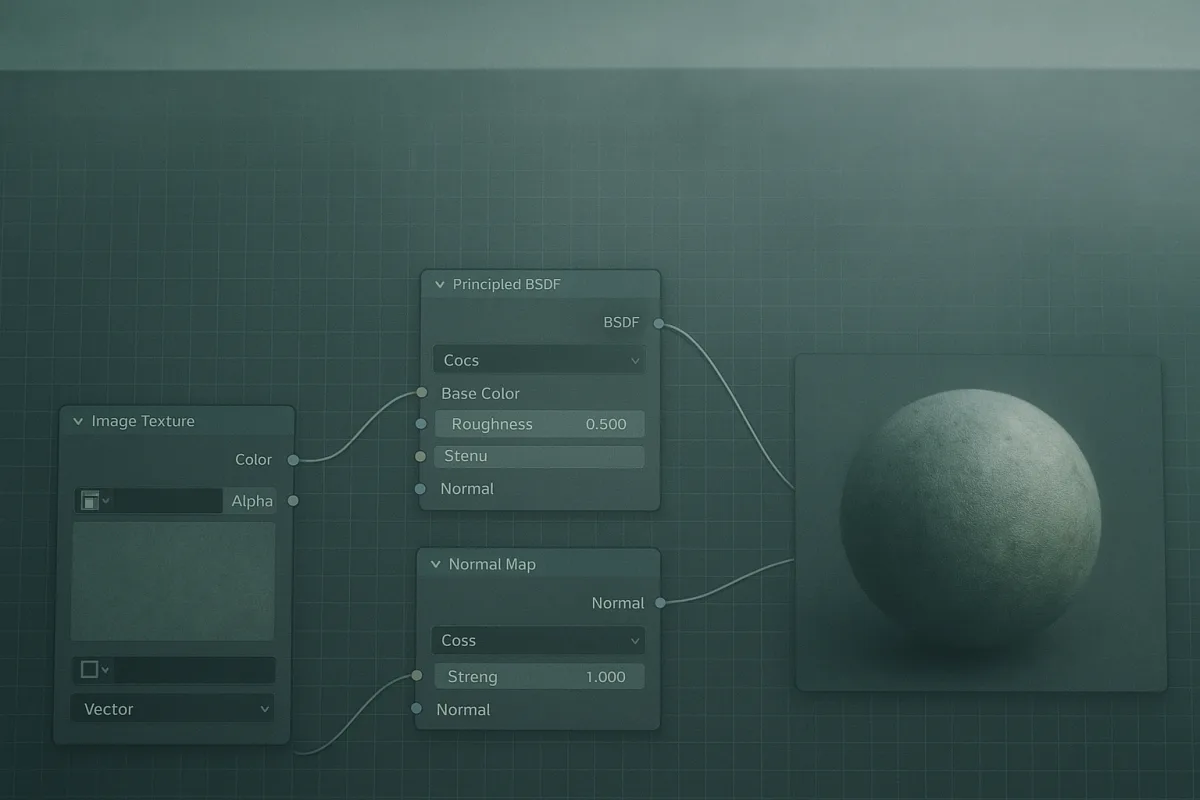
Using Nodes for Shading in Blender: A Practical Guide
Learn how to use nodes for shading in Blender with tips on Principled BSDF, texture color spaces, and Cycles vs Eevee differences.
How to Bake Textures in Blender: A Practical Guide
Learn how to bake textures in Blender with tips on UVs, resolution, and Cycles baking for game-ready assets and efficient workflows.
Blender Product Visualization Workflow for Realistic Renders
Learn a practical Blender product visualization workflow with lighting, rendering, and camera tips for photorealistic product renders.
Best Software for Procedural Texture Creation in 2026
Explore the best software for procedural texture creation, comparing Substance Designer and Houdini for different workflows and material needs.