
Blender Product Visualization Workflow for Realistic Renders
Learn a practical Blender product visualization workflow with lighting, rendering, and camera tips for photorealistic product renders.
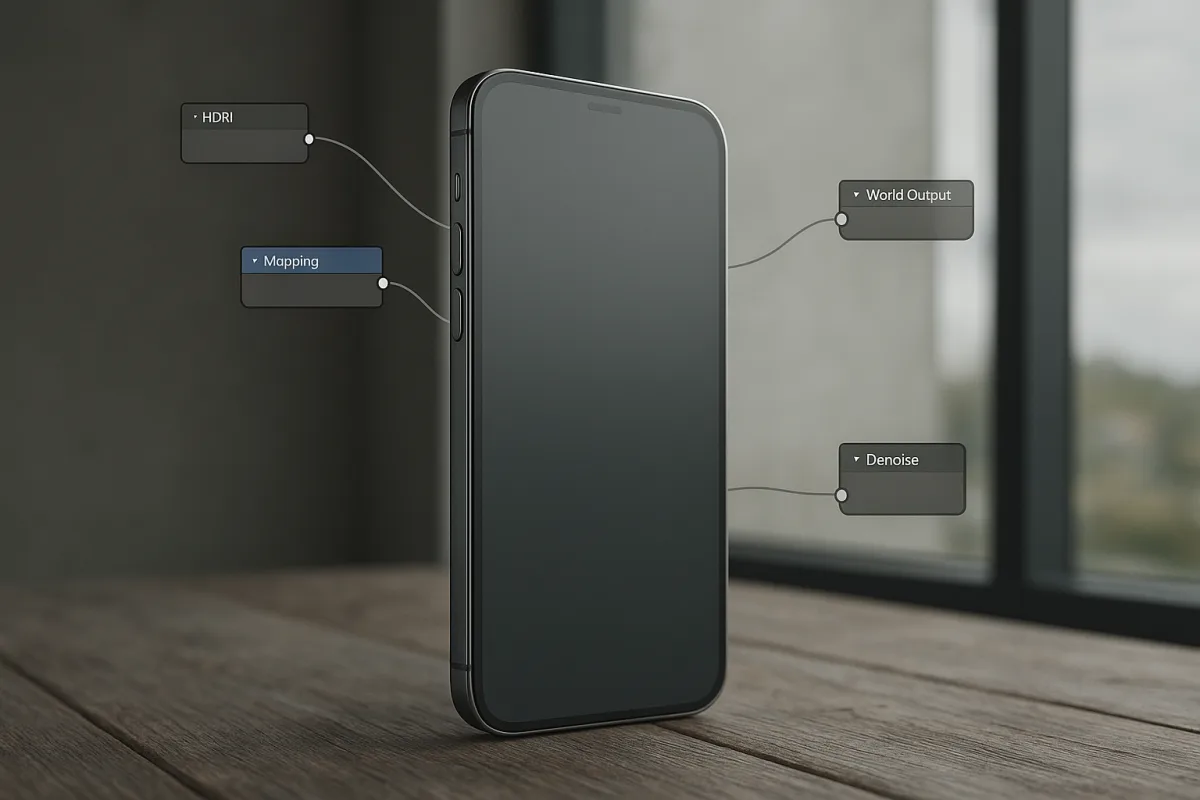
Product Visualization in Blender: A Practical Workflow for Better Product Renders
Start with the output, not the shader
The first problem in product visualization is usually not Blender. It is deciding what the image needs to prove. A hero render, a marketplace listing, a print catalogue image, and a configuration preview all ask different things of the same model.
For e-commerce, the product must read quickly from several angles and survive close inspection. Packaging renders also need clean graphics, believable paper or coated finishes, and enough flexibility to update variants without rebuilding the whole scene. [19][20]
That decision determines what detail deserves geometry, what can stay in a texture, and how much rendering time is sensible. The research brief does not support a universal product-visualization topology or UV prescription, so I would not pretend there is one.
A close-up of a machined aluminium control knob and a small web thumbnail of the same object should not receive identical modelling effort. Put geometry into silhouette changes, seams, chamfers, recessed lettering, and features that catch light at the intended camera distance.
That is a working habit, not a rule. A raised logo may need real depth for an animation or macro crop, while a flat printed mark is often better treated as graphics. What matters is whether the feature changes the product’s readable form.
Set up Blender for the work you will repeat
The recommendations here assume Blender 4.0 or later, including the current Blender 5.2 LTS-era interface documentation. Blender’s Layout, Modeling, UV Editing, Shading, and Rendering workspaces are useful task-based starting points, not a required production layout. [3][25]
For product work, keep the Outliner visible enough to manage cameras, lights, render collections, and alternate product variants. Keep Properties accessible because you will revisit render settings, colour management, world lighting, and output settings more often than you expect. [3]
I would also separate the camera view from the look-development view when screen space permits. One viewport can stay locked to the approved shot while another remains free for checking reflection cards, light positions, and unwanted intersections.
There is no evidence for one ideal Blender workspace arrangement, and chasing somebody else’s layout is rarely productive. The useful customization is the one that reduces context switching in your own job, whether that means a larger Shader Editor or a permanent render preview.
Do not confuse interface comfort with render quality. Viewport navigation matters for getting around a scene efficiently, but it does not substitute for a clean camera, properly sized bevels, or a lighting setup that explains the form. [4][16]
Choose Cycles before you start judging realism
For final product imagery, set the renderer to Cycles. Eevee is valuable for previews and fast iteration, but the research brief’s position is clear: it generally cannot match Cycles when photorealistic light transport, reflections, glass, and material response are the goal. [10][11]
This is especially noticeable on reflective products. A phone, polished appliance, watch case, or glossy plastic object does not just need a shiny material. It needs useful things to reflect, with highlights placed deliberately across its surfaces. [18]
Do not leave a final still at a traditional 4096-sample target simply because an old preset or tutorial uses it. With denoising enabled, 64 to 128 samples is a more sensible starting range for many stills, then raise it only where the image still shows noise. [2][23]
The exact number remains scene-dependent. Glass, dark interiors, tiny emissive details, caustic-like noise patterns, and shallow depth of field can all demand more samples, while a simple studio render may clean up well below that range. [12][13]
Use OptiX denoising where an NVIDIA RTX GPU is available, or OpenImageDenoise when image accuracy is the priority. Denoising is not permission to ignore sampling problems, but it is the reason extreme default counts are often unnecessary. [2][23]
For glass-heavy products, reduce unnecessary light paths before adding brute-force samples. The brief recommends diffuse bounces of 2, glossy bounces of 4, and transmission bounces of 8 as a practical starting point for glass materials. [12][23]
Get colour management stable before lighting
Do colour management early, because exposure decisions made under one view transform can look wrong under another. Blender 4.0 and newer uses AgX by default, which changes highlight roll-off and exposure behaviour compared with older Filmic-based Blender tutorials. [1]
Filmic remains established advice for high-dynamic-range rendering workflows, while standard display output is typically sRGB for ordinary monitors. [1] The important production decision is consistency: set the transform intentionally and do not change it midway through approving materials.
AgX is generally the sensible default in Blender 4.0 or later unless a client pipeline explicitly requests another transform. If the job goes to print, make colour approval part of the process rather than trusting an uncalibrated display render.
This matters more for product visualization than many artists expect. A customer must recognize the product, its finish, and its graphics, while catalogue work places particular pressure on dependable colour rather than merely attractive contrast. [16][20]
Build reflections before you build dramatic lighting
A bare product under generic three-point lighting often looks like a floating CG asset. Start with an HDRI environment because it provides broad, coherent environmental light and, just as importantly, believable content for reflective surfaces to mirror. [5][7]
Do not spend time downloading enormous HDRIs solely for illumination. HDRI resolution does not directly improve lighting quality. High resolution matters when the environment itself is visible in the frame, or when its reflected detail must remain sharp on a highly polished product. [5][7]
Once the HDRI establishes the environment, add controlled studio lights. Use an Area Light as the key, positioned to describe the dominant planes of the product, then add a weaker fill from the opposite side to prevent important detail disappearing into black. [6]
A roughly 25-power key light is a starting point mentioned in the research brief, not a universal setting. Blender light power is inseparable from scene scale, light size, distance, exposure, and the material being lit, so judge the highlight rather than copying a number. [6]
Place the rim light behind or behind-and-above the object, aiming for edge separation from the background. It is most useful when the product’s silhouette is dark, when the background is similar in value, or when a glossy edge needs a readable line. [6]
This HDRI-plus-three-light approach is useful because it separates environmental plausibility from art direction. Rotate the HDRI for broad reflection shapes, then move the key and rim lights for the exact highlights that make the product legible. [5][6][18]
Avoid making every surface equally bright. Flat, overlit scenes, weak or absent contact shadows, and light directions that do not explain form are repeatedly identified as reasons architectural and product visualization can feel synthetic. [14][15][16]
Make materials respond to light, not just colour
Most fake-looking product renders fail at the relationship between roughness, reflections, and light placement. A physically plausible metal or plastic shader can still look wrong if it reflects a blank world or if every light produces the same broad highlight. [17][18]
For reflective electronics, treat reflection management as part of the lighting setup. Large soft shapes are useful for smooth highlight gradients, while narrow or darker reflection cards can define curves and separate a black screen from a black body. [18]
For matte packaging, suppress distracting glare rather than trying to make every carton visually exciting. The customer needs to read the label, understand the material, and see whether the finish is paper, coating, plastic, or foil. [16][20]
Use contact shadows to anchor the object. A product hovering above a seamless background usually reads as a scene assembly error, even when the model itself is accurate. The shadow should support scale and weight without becoming a hard, theatrical stain. [14][16]
Do not judge roughness from the Material Preview sphere alone. Judge it in the approved camera with the intended HDRI and studio lights, because roughness determines the blur and spread of reflected surroundings, not simply how dull a colour appears. [17][18]
Frame the product without distorting it
Use a 35 mm to 50 mm focal length for a dependable product starting point. This range avoids the obvious wide-angle exaggeration that can make a product’s front face look oversized or its depth look implausibly stretched. [8][26]
A longer lens can suit a compressed, premium catalogue look, and a wider lens can be useful when the product must show scale or context. Neither choice is automatically better, so treat focal length as a design decision rather than a realism slider.
Set the camera before finalizing lights and materials. Moving the camera later changes the apparent size and position of reflections, the visibility of seams, and the amount of rim light that reaches the visible edge. [8][18]
For sharp product output, begin around 3000 by 4000 pixels or higher when the image needs to show small graphics, fine texture, or crop flexibility. Resolution increases render time substantially, so test the composition at lower resolution first. [9][13]
Depth of field is optional. It can guide attention in a hero image, but it can also hide product information and create noise in Cycles. There is no universally correct aperture or focus distance, so use it only when it serves the brief.
Plan render performance before the deadline arrives
Cycles rewards GPU horsepower, particularly when you are rendering high-resolution stills, glass, glossy materials, or multiple product angles. The briefing recommends RTX 4070 or 4080-class GPUs and above for demanding work, with an RTX 4090-class card preferred for complex scenes. [21][22]
A capable GPU does not remove the need for sensible scene settings. Render time rises with resolution, samples, light complexity, geometry, shader complexity, and transmission, which is why a low-resolution look-development render should precede the final queue. [13][24]
Aim for at least 32 GB of RAM, fast NVMe storage, and a strong multi-core CPU such as a Ryzen 9 or Core i9 class processor for modelling and supporting tasks. Those specifications help the broader Blender workflow, not only the final render. [21][22][25]
Save final-quality settings as a named scene or file version rather than relying on memory. Product jobs often return for a new colourway, revised label, alternate angle, or seasonal campaign, and repeatability is what turns a good render into a usable workflow.
Frequently Asked Questions
How do I set up Blender for product visualization?
Set up Blender 4.0 or later with task-based workspaces like Layout, Modeling, UV Editing, Shading, and Rendering as starting points. Keep the Outliner and Properties panels visible for managing cameras, lights, render settings, and color management. It is helpful to separate the camera view from the look-development view to monitor the approved shot while adjusting lights or reflections. Customize your workspace to reduce context switching and improve workflow efficiency.
What is the best render engine in Blender for product renders?
Cycles is the preferred render engine for final product imagery due to its photorealism, especially for convincing reflections, glass, shadows, and material response. Eevee is useful for previews and fast iteration but generally cannot match Cycles’ realism, which is critical in product visualization.
How to light products effectively in Blender?
Combine an HDRI environment to provide believable environmental reflections with a three-point lighting setup consisting of key, fill, and rim lights. The key light is typically an Area Light with about 25 power and can have a warm tint, the fill light is lower power and positioned opposite the key, and the rim light is placed behind the product to separate it from the background. This approach helps control what the viewer sees and emphasizes the product’s surfaces.
What camera settings work best for product visualization in Blender?
Use a focal length between 35 mm and 50 mm to avoid distortion and mimic human eye perspective for most catalogue-style product shots. Render at resolutions of 3000 by 4000 pixels or higher to capture fine labeling, edges, and material details clearly.
How many samples should I use for product rendering in Blender Cycles?
With denoising enabled, start with 64 to 128 samples for still renders rather than using the default high sample counts like 4096. This range balances render quality and time effectively for product visualization, but you may adjust based on scene complexity.
How we researched this
This article was assembled from 26 cited references.
Nothing here is based on hands-on testing. Where a figure or finding appears, it belongs to the source cited beside it, and the writing says so rather than implying otherwise. Every source is listed below so you can check it.
Sources
- Blender - RxDocs - Color Management
- Blender Render Settings: Optimal Setup for Cycles & Eevee
- How to Customize Blender Workspaces, UI Scale, and Themes
- Blender Viewport Navigation
- Blender HDRI Lighting: Sun, Shadows & Lighting Only | HDRI Hub
- How to use key, fill and rim lighting in 3D art
- HDRI Lighting: A Complete Guide - Attemptry Blog - Attemptry
- Can You Change the Focal Length of a Camera in Blender? | Blender Render farm
- Blender render settings for beginners: resolution, frames, samples, and quick previews | AZTechnology
- [Blender] Complete Guide to Render Settings - Choosing Between Cycles and Eevee | UhiyamaLab
- Cycles vs EEVEE: Which Blender Render Engine Should You Use?
- Blender Cycles Interior Rendering Settings (5.2 LTS) · 3dsınıfı
- Blender Cycles Render Time by Resolution | 1001Ferramentas
- Common Mistakes in 3D Interior Visualization That Diminish the Value of the Design | VisEngine
- 8 Common Mistakes to Avoid in 3D Architectural Rendering | SampleBoard
- Common mistakes in 3D product images | Mimetry
- Why Your 3D Product Renders Look Fake: 5 Lighting and Material Mistakes to Fix in 2026 - 360 Render
- Reflective Product Photography Guide | PhotoSpherix
- 3D Product Visualization From $99 | Animate & Create
- 3D/CGI Packaging Rendering | ARTiViA Inc.
- 3D Animation & Blender Rendering Workstation Guide
- Hardware Recommendations for Blender | Puget Systems
- Best Blender Render Settings to Render Faster - Fox Render Farm
- How to Speed Up Blender Render Times
- System Configuration - Blender 5.2 LTS Manual
- Cameras — Blender Manual
Related Articles
Blender Visual Effects Workflow
Learn the Blender visual effects workflow: camera matching, lighting, rendering with EEVEE and Cycles, and compositing tips for seamless VFX shots.
Octane vs V-Ray Architectural Rendering: Which to Choose?
Compare Octane and V-Ray for architectural rendering to find the best fit for your hardware, workflow, and project needs.
Best Lighting Techniques for Blender Rendering
Discover the best lighting techniques for Blender rendering using Cycles and Eevee to create realistic, well-shaped 3D models.
Best Rendering Engine for Product Visualization in 2026
Compare KeyShot, V-Ray, and Blender Cycles to find the best rendering engine for product visualization workflows in 2026.