
Create 3D Model from Photo in Blender: Step-by-Step Guide
Learn how to create a 3D model from a photo in Blender with accurate reference setup, modeling tips, and workflow for clean geometry.
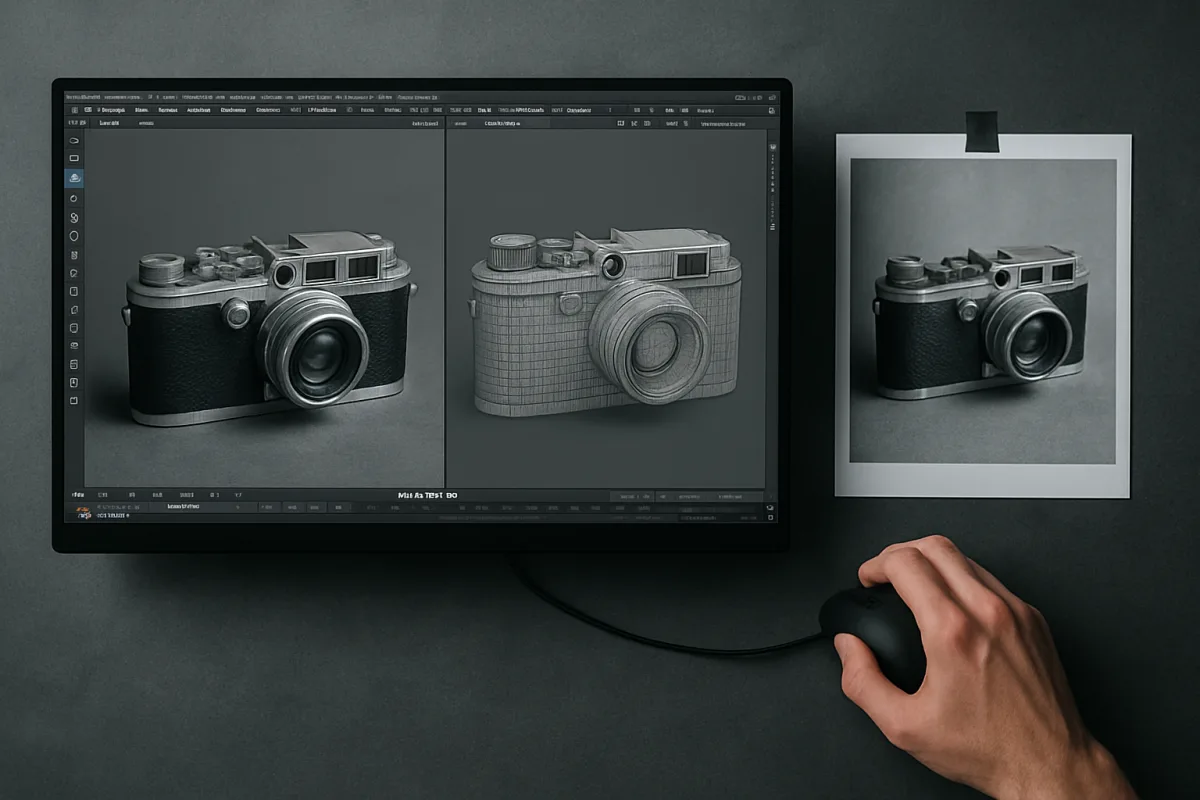
Start by deciding what “convert” needs to mean
A photo can become several different kinds of 3D result. It might become a convincing rendered object from one camera angle, a clean reusable asset, or a scanned-looking scene you can orbit freely. Those are different jobs.
For a product render that will closely match one supplied image, manual Blender modeling is often the sensible route. You control silhouette, materials and shading, while accepting that unseen areas are informed guesses rather than recovered facts. [2][14]
For an object that needs to work from every side, capture more photographs before opening Blender. Reports on image-to-3D workflows put single-photo results around 70 to 80 percent accurate, compared with approximately 90 to 95 percent for 3 to 8 views. [16][20]
That gap is not a failure of one application. A single camera view cannot reveal the back, underside, true thickness, or whether a dark patch is a recess, shadow, decal or material change. AI has to invent those answers. [14]
AI generation may produce an initial result in one or two minutes, but that speed applies to the first mesh, not a finished asset. Cleanup, topology correction and look development remain the real work, particularly on intricate objects. [8][20]
Make the reference photo useful before modeling
I am describing the manual workflow in Blender 5.2 LTS, released in July 2026. Blender interfaces move, so confirm the version before following any menu-oriented tutorial, especially where add-ons and import tools are concerned. [7]
Begin with the best source image available. A 1024 by 1024 pixel image is a practical minimum, while images below 512 by 512 do not carry enough usable detail for dependable photo-derived geometry and textures. [21]
A square, 1:1 image is preferred where you can choose the crop. Keep the subject occupying roughly 60 to 80 percent of the frame, in sharp focus, against a neutral background with even, diffuse lighting. [21]
Those conditions are not aesthetic fussiness. Hard shadows can be misread as shape, busy backgrounds compete with the silhouette, and a tiny object forces you to upscale soft texture information that never existed. [13][14]
If you can photograph the subject again, take a full orbit with overlap between frames, not random isolated hero shots. Keep exposure and lighting consistent, because feature-matching photogrammetry workflows depend on repeatable visible surface detail. [1][16]
Avoid changing focal length partway through the capture. A wide phone lens can work, but do not move so close that perspective aggressively enlarges the near side, unless you want to spend time correcting that distortion manually.
Put the photo in Blender without letting it dictate bad geometry
In Blender 5.2 LTS, import the image as a reference plane through Images as Planes, then position, scale and lower its opacity until the model remains readable over it. [2][7]
Set the scene orientation before modeling. A common failure is mixing up object axes, camera axes and real-world units, then discovering late in the process that a supposedly upright object is rotated or inconsistently scaled. [13]
Apply object transformations once the blockout is correctly sized and oriented. Unapplied scale can distort bevel widths, procedural textures and normal behavior, which makes an otherwise competent model look inexplicably wrong under studio lighting. [15]
The reference plane should guide proportions, not become an excuse to trace every outline with dense polygons. Match the biggest readable facts first: height-to-width ratio, primary silhouette, major cut-ins, and the placement of obvious repeated features.
I usually advise beginners to begin from primitives because they expose the construction logic. A bottle is a revolved body plus a neck, a chair is volumes and joins, and a camera is stacked hard-surface forms.
That is a habit, not a rule. If the photo shows an ornamental or irregular organic object, sculpting the broad forms in ZBrush or Nomad Sculpt before retopology may be quicker than forcing every contour from Blender box modeling.
Solve camera and proportion before spending detail budget
A model can look wrong even when its outline matches the photograph, because the Blender camera does not match the original lens and viewpoint. This is especially noticeable on furniture, vehicles and architectural subjects with strong parallel lines.
Start near eye level with a 35 to 50 mm focal length, then adjust camera position before changing the mesh. Slight depth of field can support a photographic render later, but do not use blur to hide proportional mistakes. [17]
Check the reference through the render camera regularly. If one side seems too large, first ask whether the camera is too close or too wide before pulling vertices around to compensate for perspective.
Single-view depth remains ambiguous. Give the object believable thickness, construct a reasonable back and underside, and use known real-world dimensions when available, but label those decisions as reconstruction assumptions rather than recovered measurements. [14]
Do not let the source photo’s highlights dictate actual convexity. A shiny edge may be a reflection, while a dark line may be ambient occlusion, grime or a seam, not necessarily a physical groove.
Keep the mesh editable, then retopologize what needs it
Dense, irregular geometry is one of the most common photo-to-3D traps. It may resemble the source immediately, but it is harder to UV unwrap, shade, deform, edit and render efficiently. [13][15]
For a static hard-surface prop, place loops where they hold silhouette, define openings, support bevels or separate materials. Large flat regions do not need a grid of tiny faces merely because the photo contains surface noise.
For organic shapes and AI-generated meshes, make a distinction between surface detail and production topology. Keep a high-density source mesh for baking or displacement, then build cleaner quads for the model that will be animated or textured. [10]
Manual retopology can consume substantial time, reportedly as much as 60 percent additional time relative to modeling in some workflows. That is why automatic remeshing is useful, but it does not remove the need for inspection. [10]
Quad Remesher is one commonly cited automated option for Blender workflows, and published guidance claims it can reduce retopology time by 85 to 90 percent. Treat that as a time-saving estimate, not a guarantee of animation-ready topology. [11]
I have not used every add-on mentioned here, so I would not promise a one-click result. Examine edge flow around joints, holes, sharp transitions and deforming areas, then repair the places where automation ignored design intent.
Choose AI, photogrammetry or manual reconstruction for the right reason
There is no Blender-native, fully automatic single-photo-to-production-model pipeline to rely on. External AI services can generate a starting point, but their hidden geometry, proportions and material separation need validation in Blender. [8][9][20]
If you have multiple images, photogrammetry is a stronger fit than a single-image generator. Structure-from-Motion and Multi-View Stereo pipelines use correspondences across views to estimate camera positions and reconstruct visible form. [1]
The SBCV Photogrammetry Importer/Exporter is relevant here because it supports interchange with multiple SfM and MVS pipelines. It suits a workflow where reconstruction happens outside Blender but inspection, cleanup and scene assembly happen inside it. [3]
Photogrammetry is less forgiving with architecture than with rough natural surfaces. Buildings often produce lumpy walls and wavy roof edges, so the Planer add-on is aimed at planar cleanup, including straight walls and crisp ridges. [5]
Plane Cutters, available through Superhive, is another named Blender cleanup tool in this area, intended for cutting and processing planar geometry. Its suitability is hard-surface or architectural cleanup rather than replacing proper capture or retopology. [4]
Blender 5.3 is reported to add native Gaussian Splatting support in November 2026. That is an emerging alternative for photorealistic point-based scene display, not proof that splats replace polygonal assets for UV work, animation or fabrication. [6]
Rebuild texture information instead of projecting every flaw
Once the shape is stable, unwrap the clean mesh and separate texture from lighting. Projecting the source photo directly onto the model can be useful as a starting base color, but it also projects shadows, reflections and perspective distortion. [2][22]
Use high-resolution PBR maps at a scale appropriate to the object. The important distinction is that base color describes pigment, while roughness, normal and height information describe how the surface catches light. [18][22]
Substance Painter is a reasonable dedicated choice when the asset needs layered masks, wear control and texture export, while Blender remains capable of UV work and shader assembly. ZBrush suits sculpted high-frequency detail that can later become baked maps.
For procedural detail, Houdini can make sense when variation needs to be systematic across many assets. Plasticity may be a better starting tool for precise CAD-like hard-surface forms, though Blender is still where many artists assemble, shade and render them.
Do not overdo imperfections. Subtle roughness variation, restrained edge wear and slight color breakup generally read better than universal scratches, especially when the reference photograph was captured under soft lighting. [18]
Light the reconstruction as an object, not as a cutout
Use Cycles in Blender 5.2 LTS when the aim is realistic light transport and material response. Eevee can be useful for quick checks, but source-photo matching depends heavily on believable reflections, shadow softness and indirect light. [17]
Begin with an HDRI environment to establish broad reflection information, then add a key, fill and rim light where needed. This three-point approach gives you direct control without losing the environmental context supplied by the HDRI. [19]
Light size matters as much as intensity. Larger apparent sources create softer transitions and broader reflections, while smaller sources create sharper highlights that can make a rough material look glossier than its texture settings suggest. [19]
Match color temperature and contrast to the reference only after the model has sensible materials. If a photo contains a warm window reflection or cool skylight, recreate that through lighting where possible instead of baking the color cast into albedo.
Finally, use Blender’s compositor for restrained color correction and finishing effects. Rendering is the test of the reconstruction: flipped normals, unapplied scale, broken smoothing and inadequate bevels often become obvious only when the object is properly lit. [15][17]
Frequently Asked Questions
How accurate is creating a 3D model from a single photo in Blender?
Creating a 3D model from a single photo typically achieves about 70 to 80 percent accuracy because the modeler or AI must guess hidden depth and unseen areas. This level of accuracy is suitable for plausible reconstructions but not precise measurements, as a single view cannot reveal back or underside details.
What is the best workflow to create a 3D model from a photo in Blender 5.2?
In Blender 5.2 LTS, start by importing the photo as a reference plane using the 'Images as Planes' feature. Position, scale, and lower the opacity of the image, then block out basic shapes with primitives, refine geometry to match contours, unwrap UVs, and apply textures. Finally, set up lighting and render to match the photo’s conditions.
How do I use a photo as a reference without tracing every detail in Blender?
Use the photo to establish the silhouette, camera angle, and major proportions first, then build clean geometry rather than tracing every pixel. This approach focuses on capturing the overall form and structure instead of copying every detail, which helps avoid messy geometry and performance issues.
When should I use multiple photos instead of one for 3D modeling in Blender?
Use multiple photos—ideally 3 to 8 overlapping views—when you need higher accuracy (around 90 to 95 percent) or a model that works from every side. Multiple images provide more complete surface information and reduce guesswork about hidden areas, but require more capture and processing time.
How do I set up camera and proportions correctly when modeling from a photo in Blender?
Begin with a high-resolution, square (1:1) image where the subject fills 60 to 80 percent of the frame, shot with even, diffuse lighting and sharp focus. In Blender, import the image as a reference plane, adjust its position and scale to match the intended camera angle and proportions, and use typical camera settings like a 35-50mm focal length at eye level with slight depth of field for realism.
How we researched this
This article was assembled from 22 cited references.
Nothing here is based on hands-on testing. Where a figure or finding appears, it belongs to the source cited beside it, and the writing says so rather than implying otherwise. Every source is listed below so you can check it.
Sources
- A Photogrammetry-based Framework to Facilitate Image-based Modeling and Automatic Camera Tracking
- How to Create a 3D Model from an Image in Blender
- Photogrammetry Import/Export | Blender for Visual Investigation
- Plane Cutters - Superhive (formerly Blender Market)
- Planer: Turn lumpy photogrammetry into crisp architecture (planar walls, straight ridges, U - Released Assets - Blender Artists Community
- Blender 5.3 finally gets game-changing native Gaussian splat support
- Blender 5.2 LTS Release — Blender
- Generate 3D Models from Photos with AI — Try Free
- Hands-On With Copilot 3D - Microsoft's AI Can Turn a Single Photo Into a 3D Model
- What Is The Process Of Retopology In 3D Modeling? - Blender Base Camp
- Quad Remesher for Blender: Automated Retopology Guide
- How to Turn a 2D Image into a 3D Model in Blender
- Common Mistakes When Creating 3D Models From Images
- Why AI 3D Models Get Proportions Wrong | AssetHub
- Common Mistakes in Blender Modeling
- Is It Better to Use One Photo or Multiple Photos for 3D Generation?
- Photorealistic rendering in Blender: the method | TURNA
- Tips for Creating Realistic Textures and Finishes in Solid Model Renderings | Engineering Niche
- 7 Ways to Achieve Realistic Lighting in Blender - Blendergrid
- How Accurate Are AI-Generated 3D Models From Images? | ITS
- Image to 3D Guide: Turn a Photo into a 3D Model | 3D AI Studio Docs
- Texturing Blender Models: Techniques for Photorealistic Results
Related Articles
Create a Character Rig in Blender: Step-by-Step Guide
Learn how to create a character rig in Blender with bone placement, weight painting, and testing for smooth animation.
3D Modeling Software Comparison for Hard Surface Modeling
Compare Blender and Plasticity for hard surface 3D modeling, exploring workflows, topology, and rendering capabilities in one detailed guide.
Blender Ergonomics for Beginners: Safe Setup and Breaks
Learn Blender ergonomics for beginners with tips on posture, breaks, and workspace setup to work safely and comfortably.
Blender Architectural Visualization Workflow
Learn the Blender architectural visualization workflow: import CAD, model accurately, set scale, and create realistic materials and lighting for renders.