
Blender 3D Logo Topology and Mesh Optimization Techniques
Learn how to optimize topology and reduce polygon count for 3D logos in Blender while preserving clean mesh and visual quality.
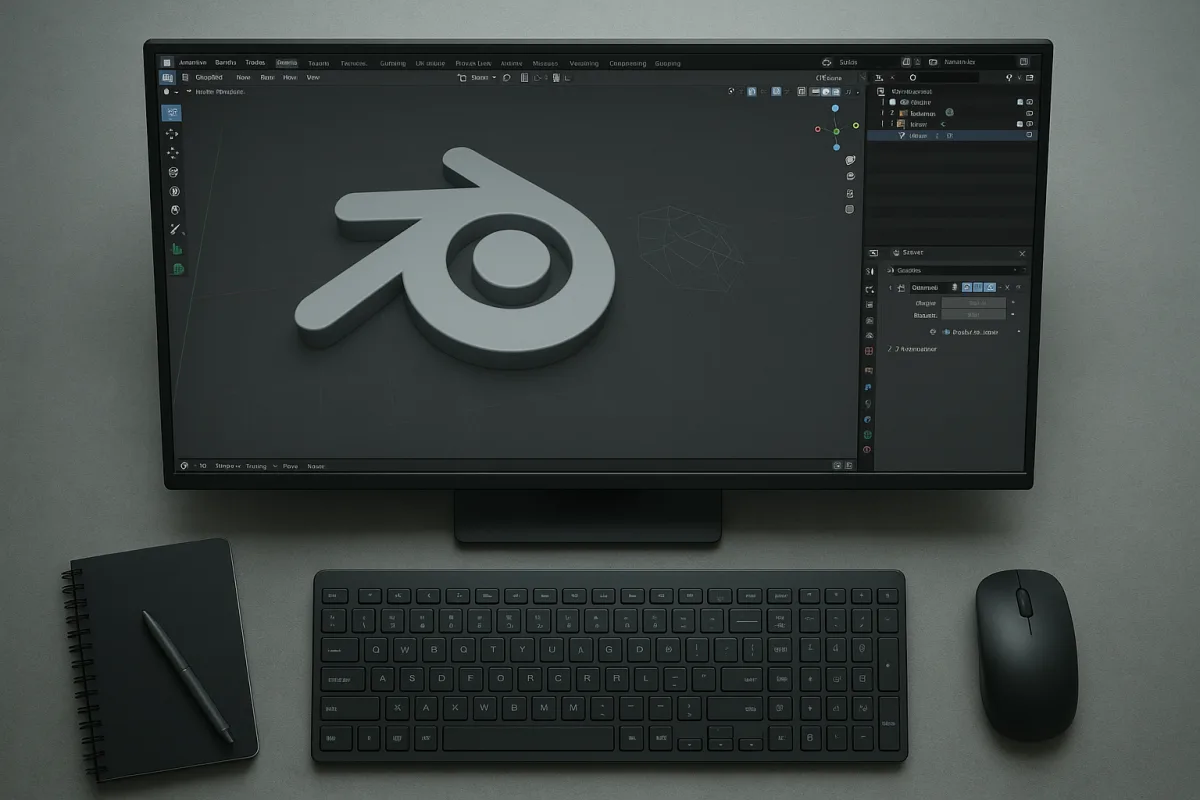
Start by deciding what the 3D version is for
The first problem is not modelling. It is deciding whether the logo needs to be a rendered image, an interactive web asset, a motion ident, a 3D-printable object, or a source model for future campaigns.
That decision controls almost everything downstream: mesh density, materials, lighting, texture work, render engine and export format. There is no standard polygon count, texture resolution or production time that fits every 3D logo project. [5][7][8]
For a social post or website hero image, you can spend geometry where it affects the silhouette and let the renderer do the rest. For a real-time logo used on mobile, every unnecessary bevel segment becomes delivery weight.
For a physical logo, reverse the priority. Smooth shading and triangle counts matter less than whether thin strokes have enough wall thickness to survive the chosen print process. The research does not support one universal mesh-resolution target for logo work. [5]
Keep the original 2D logo intact throughout the project. A three-dimensional interpretation is an additional asset, not a replacement for the version needed on invoices, embroidery, favicons, stamps and one-colour print. [11]
Bring in clean vector artwork, not a screenshot
In Blender 5.2 LTS, begin with an SVG whenever the brand owner can provide one. Blender can import SVG vector artwork as scalable curves, which gives you editable outlines instead of trying to trace soft, aliased pixels from a raster reference. [1][4]
This matters most with typography. A slightly inaccurate curve, uneven corner or mismatched counter is obvious when viewers already know the logo. 3D depth will not conceal a poor outline, it usually makes the error more visible.
Check the SVG before building depth. Look for overlapping shapes, duplicate points, unclosed paths and self-intersections, especially in lettering. Those issues can turn a straightforward extrusion into broken faces, unexpected holes or shading artifacts.
If the only supplied asset is a bitmap, tracing may be unavoidable. Logo Tracer is an add-on intended to convert images directly to mesh or curve data, avoiding an external SVG step. [2] That can be useful for a rough starting point, but it cannot restore the design decisions missing from a low-resolution image.
Do not let a tracing tool become the final arbiter of the logo. Compare the resulting curves against the approved artwork, simplify where needed, and rebuild questionable letterforms manually. The cleanest topology begins with the cleanest source curves.
Give the mark depth without making it clumsy
Once the outline is correct, extrusion creates the basic body and beveling softens the front, rear and side edges. Those are the core operations for turning a flat vector shape into a logo with readable depth. [1]
Depth should have a reason. A shallow extrusion may read as premium embossing or a product badge. A deeper extrusion can suit signage, a game-style ident or a logo intended to show clear side faces in animation.
Bevels are where many otherwise good logo models go wrong. Perfectly sharp edges rarely light well, while oversized roundovers can make crisp type look inflated. Use enough bevel width to catch a controlled highlight, then stop.
This is a habit, not a rule, but I would judge bevel size from the intended camera distance rather than from the modelling viewport. A bevel that looks subtle up close may disappear in a square social crop, while one that looks elegant in Blender can dominate a small web header.
Be especially careful with thin strokes, interior counters and tight corners. An aggressive bevel can eat into narrow letterforms and close the negative space that makes the logo recognizable. Preserve the silhouette first, then add dimensional detail.
Keep topology clean where it affects shading
Curves and extrusions can produce usable results quickly, but inspect the converted mesh before adding complicated materials or modifiers. Common guidance for stable models is to avoid N-gons, keep topology predominantly quad-based and maintain sensible edge flow to reduce pinching and creasing. [1]
That advice is strongest when the logo will deform, animate, receive close-up reflections or be converted into a more complex mesh. A static, flat-sided emblem does not need subdivision-ready topology merely because that is how character artists work.
Avoid dense geometry for its own sake. More loops do not automatically make a logo smoother, especially when bevels and shading already control the visible edge. Excess density slows viewport work, burdens exports and makes cleanup harder. [5][6]
For a web-delivered asset, the available general guidance is to stay below 100,000 triangles for smooth performance across devices, including smartphones. Treat that as a ceiling to work under when appropriate, not a creative target to fill. [5]
If an imported or converted logo is heavier than it needs to be, Blender’s Decimate modifier can reduce polygon count with limited visible loss. [6] Check the silhouette, curved letters and bevel highlights afterward, because those are where simplification becomes obvious first.
Choose typography tools according to the actual problem
Typography adds a separate problem: a wordmark needs spacing, line breaks and script support before it needs extrusion. Blender’s native text and curve workflow can handle many simple marks, particularly when you have the correct licensed font and approved layout.
Several add-ons aim to speed up that stage. QuickSigns provides Google Fonts access, live preview and material customization. [12] It suits rapid exploration when the typeface is available through that library, rather than a job requiring a supplied proprietary font.
TextPro is positioned around advanced typography, including multi-line text and right-to-left support. [1] It is more relevant when the wordmark itself is the modelling task, rather than when you are importing an already approved vector lockup.
Vector To 3D is designed for one-click SVG conversion with extrusion and bevel controls. [3] It suits fast first-pass volume generation from clean vector artwork, but it should not replace inspection of small counters, joins and thin shapes afterward.
The briefing provides no comparative testing, price information or limitation data for QuickSigns, Logo Tracer, Vector To 3D or TextPro. I have not used each add-on, so treat them as workflow options, not guaranteed upgrades over Blender’s native curves.
Do not unwrap until the form is final
If the logo only uses solid materials, gradients or simple procedural treatment, UVs may be unnecessary. If it needs printed graphics, directional brushed metal, distressed paint, decals or baked maps, plan UVs after modelling is settled.
Finalizing geometry before unwrapping prevents repeated UV repairs when extrusion depth, bevel width or topology changes. [9][13] This is particularly important with a logo, where even a small shape edit can shift every island.
Place seams in less visible areas, usually along back faces or hidden side transitions, to reduce visible texture discontinuities. For more complex shapes, Angle Based unwrapping is recommended in the available UV guidance. [9][13]
Aim for consistent texel density between letters and symbol elements. Use Blender’s stretching overlays to find distorted areas, then test the actual texture in the viewport before committing to a final render. [13]
There is no supported fixed texture-resolution recommendation for 3D logos. Balance fine detail against file size and target platform, especially when the output will load in a browser rather than be rendered once at print resolution.
Substance tools may make sense when the brief requires layered wear, paint, labels or material variation across many campaign assets. For a clean corporate mark, Blender’s own shader tools may be the more direct route because elaborate texture painting can add work without improving the result.
Light the form, not the material library
A 3D logo becomes legible through highlights, shadow separation and controlled reflections. Start with simple lighting that reveals the front face, side depth and bevel. If the brand’s shape disappears without a dramatic HDR environment, the modelling or material contrast likely needs attention.
Cycles in Blender supports physically based rendering, PBR shaders and HDR lighting for high-quality imagery. [4] Use it when the final image depends on believable metals, transparent materials, soft reflection gradients or accurate light transport.
Eevee is better suited to fast feedback and many stylized looks because it provides real-time rendering, although its reflections and lighting are less physically accurate than Cycles. [4] Build the camera, basic composition and colour direction there if rapid iteration matters.
Do not reflexively make every surface glossy. Excessive reflective material creates the familiar chrome-showroom effect, where the viewer reads environment reflections before they read the brand. [10] Matte, satin and selectively polished surfaces often give a clearer hierarchy.
A simple studio setup is usually enough: one broad key reflection to describe the bevel, controlled fill to retain shadow-side detail, and a background that separates the silhouette. Change one variable at a time, because material and lighting decisions are inseparable.
Budget time for iteration, not only modelling
A simple logo can be modelled in under an hour, while complex work can take several days. Texturing can range from hours to days, and complex Cycles scenes may take minutes per frame. [7][8]
For an intermediate artist, several days to a week or more is a reasonable broad expectation for a professional-quality 3D logo, especially when approvals, revisions, typography correction, rendering and delivery versions are included. [7][8]
That range is deliberately broad. A clean icon with one material is not comparable to an animated wordmark with custom textures, close-up reflections and several aspect ratios. Do not promise a fixed duration before understanding the usage list.
Export the image that the destination needs
For transparent on-screen graphics, PNG supports 8-bit or 16-bit output with alpha. WebP also supports alpha while offering efficient compression, making it a useful web delivery option when the platform supports it. [14]
Use JPEG only when a smaller file matters and transparency is unnecessary, because JPEG is 8-bit and has no alpha channel. [14] It is often suitable for a finished logo image against a fixed background, not for a reusable overlay asset.
For compositing and serious colour grading, OpenEXR supports 16-bit or 32-bit float output with alpha. [14] Render this when another artist needs room to adjust exposure, glare or background integration after Blender.
For print-oriented image delivery, TIFF supports 8-bit or 16-bit output with alpha. [14] Match pixel dimensions to the printer, placement size and requested print workflow rather than assuming one standard resolution applies to every logo.
Finally, archive more than the final render. Keep the original SVG, Blender 5.2 LTS scene, fonts or outlined curves where licensing permits, texture files, render settings and a flat logo export. The next campaign will need a different crop, material or background.
Frequently Asked Questions
How do I optimize topology for 3D logos in Blender?
Start with clean SVG vector artwork imported as curves to ensure accurate outlines. After extrusion, inspect the converted mesh and keep topology predominantly quad-based with sensible edge flow to avoid shading artifacts. Avoid N-gons and maintain clean topology especially where the logo will receive close-up reflections or complex materials.
What is the best way to reduce polygon count for 3D logos in Blender?
Keep the mesh as simple as the final output allows, aiming for under 100,000 triangles for interactive web use. Use Blender’s Decimate modifier to reduce polygons without significant visual loss. For 3D printing, prioritize wall thickness and structural integrity over polygon count.
How can I keep clean mesh topology when extruding SVG logos in Blender?
Before extrusion, check the SVG for overlapping shapes, duplicate points, unclosed paths, and self-intersections, especially in lettering. Clean and simplify curves manually if needed to avoid broken faces or shading errors. After extrusion, maintain quad-based topology and sensible edge flow to support clean shading.
What bevel techniques improve 3D logo readability in Blender?
Use a restrained bevel width that catches a controlled highlight without dominating the shape. Judge bevel size based on the intended camera distance rather than the close-up viewport view. Avoid aggressive bevels on thin strokes and tight corners to preserve the silhouette and negative space that define the logo’s readability.
How to balance mesh detail and performance for 3D logos in Blender?
Decide the logo’s purpose first, as this controls mesh density and detail. For social media or web images, spend geometry where it affects the silhouette and let rendering handle the rest. For real-time or mobile use, minimize bevel segments and polygon count. For physical logos, focus on structural wall thickness rather than mesh complexity.
How we researched this
This article was assembled from 14 cited references.
Nothing here is based on hands-on testing. Where a figure or finding appears, it belongs to the source cited beside it, and the writing says so rather than implying otherwise. Every source is listed below so you can check it.
Sources
- Create 3D Logo in Blender: Step-by-Step Modeling Guide
- Logo Tracer - Blender
- Vector To 3D — Blender Plugin: Free Download Guide · AnyPlugins
- Blender - The Free and Open Source 3D Creation Software — blender.org
- Polygon counts for logos: when to care, when not to
- How to Reduce Polygon Count in Blender (Decimate Guide) | Bake3D
- How Long Does It Take to Model a 3D Model? Real Time Ranges
- Why 3D Modeling Takes So Long & Feels Hard
- UV unwrapping: how images are put on 3D objects | AZTechnology
- Why perfectly built models can still look wrong in motion, and how to fix it
- When Not to Use a 3D Logo, and What to Use Instead | 3DLogo.io
- QuickSigns — Blender Extensions
- A UV Unwrapping Guide – Blog — Blender Studio
- Supported Image Formats - Blender 5.2 LTS Manual
Related Articles
Animate Facial Expressions in Blender: Topology and Workflow
Learn how to animate facial expressions in Blender with topology tips, shape keys, rigging, and lighting for realistic results.
Create Game Asset in Blender: Modeling, Topology, and Export
Learn how to create game assets in Blender with tips on modeling, topology, optimization, and exporting for game engines.
Volumetric Clouds in Blender
Learn how to create volumetric clouds in Blender with modeling, shading, and lighting techniques for realistic renders.
Realistic Clouds in Blender: Best Techniques for Volumetrics
Learn the best techniques for creating realistic clouds in Blender using volumetric shaders, procedural noise, and lighting tips.