
Best Computer Specs for Blender: CPU, GPU, RAM & Storage
Discover the best computer specs for Blender in 2026, including CPU, GPU, RAM, and storage recommendations for optimal 3D modeling and rendering.
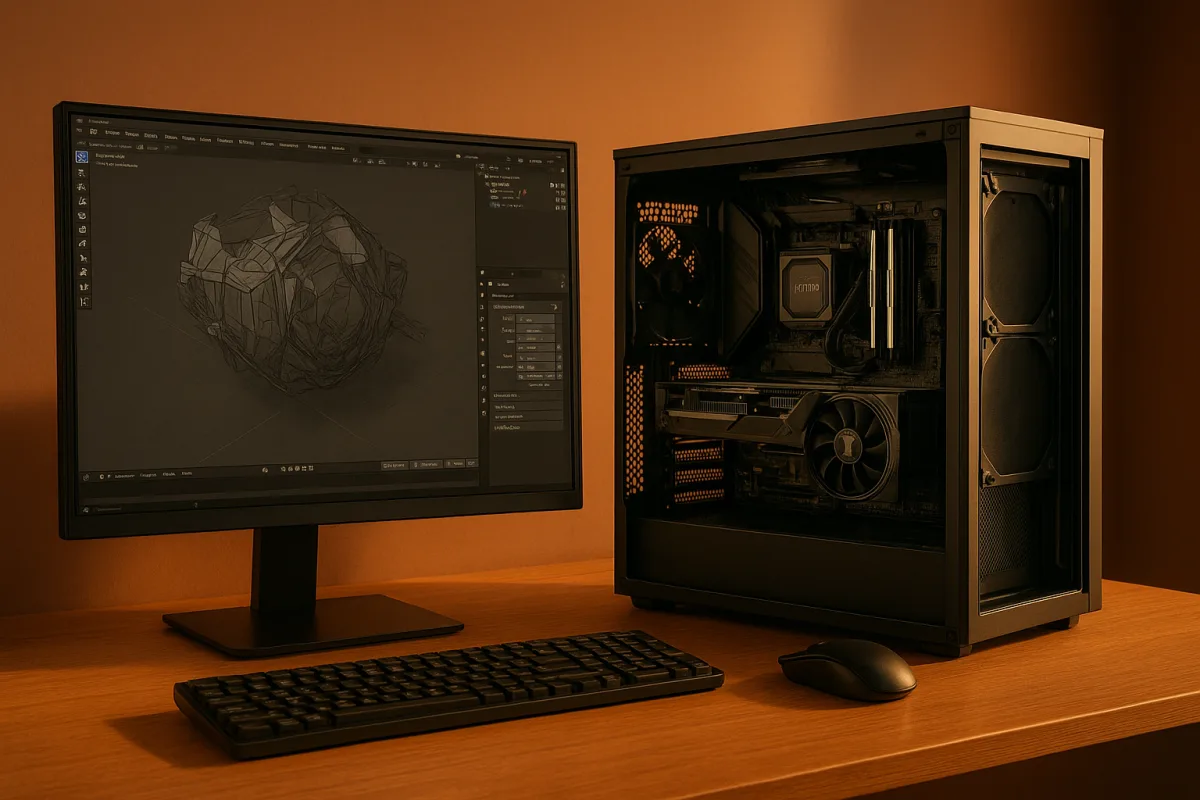
Choosing the Best Computer Specs for Blender in 2026: Intel Core i9-14900K vs AMD Ryzen 9 9950X3D
If you’re planning to upgrade your workstation for Blender in 2026, the decision often boils down to balancing CPU, GPU, RAM, and storage to suit your workflow. Among CPUs, two leading contenders are the Intel Core i9-14900K and the AMD Ryzen 9 9950X3D. Both are highly recommended for Blender rendering, but they bring different strengths that affect modeling, viewport responsiveness, rendering speed, and overall system balance. This article compares these two CPUs head to head, complemented by GPU and RAM considerations, to help you decide which best fits your Blender use case.
Why CPU Choice Matters in Blender
Blender’s performance splits mainly across two domains: modeling and viewport work, which rely heavily on single-threaded CPU speed, and rendering, which scales well with core count and multi-threading. A good Blender workstation balances these aspects rather than over-investing in just one.
The Intel Core i9-14900K offers 24 cores and 32 threads with a peak turbo clock around 6.0 GHz, which is exceptional for single-threaded tasks like sculpting, modifiers, and viewport navigation. The AMD Ryzen 9 9950X3D, with 16 cores and 32 threads, emphasizes a large 3D V-cache that accelerates data access during rendering and some modeling tasks.
CPU Core Count and Clock Speed: Rendering vs Modeling
Rendering in Blender, especially with Cycles, benefits from more cores. The 24-core Intel chip naturally edges out the 16-core AMD on raw thread count. However, AMD’s large cache helps reduce memory bottlenecks during rendering, sometimes narrowing the performance gap. According to independent benchmarks, the difference between the Ryzen 9 9950X3D and its standard 9950X variant is about 2%, which might not justify the price premium for all users[12].
For modeling and viewport responsiveness, the Intel i9-14900K’s higher boost clock is a clear advantage. Users who spend significant time in sculpt mode or working with complex modifiers will notice smoother interaction. The AMD’s cache helps, but single-thread speed remains king here.
RAM: Capacity Over Speed for Complex Scenes
RAM size is often overlooked but critical for complex Blender scenes, especially when using dense geometry nodes or high-resolution textures. While RAM speed improvements exist, they tend to be less cost-effective than increasing capacity. A minimum of 16 GB RAM suits basic projects, but 32 GB is recommended for most serious hobbyists and professionals. For heavy workflows involving 4K/8K textures and dense simulations, 64 GB or more is optimal to avoid swapping and performance degradation[8][10].
GPU: Price-to-Performance and VRAM Considerations
GPU choice depends heavily on your rendering preferences. Nvidia GPUs with CUDA and OptiX support dominate Blender Cycles rendering acceleration, but there are tiers to consider:
- High-End: RTX 4090 with 24 GB VRAM leads in raw performance and can handle massive scenes but comes at a premium price.
- Mid-Range: RTX 5070 Ti and RTX 4070 Ti Super, both with 16 GB VRAM, provide excellent price-to-performance ratios, ideal for serious hobbyists or smaller studios.
- Budget-Friendly: AMD Radeon RX 9070 XT offers near high-end Nvidia performance at a lower cost but with some limitations in CUDA/OptiX support.
The VRAM size is crucial; 16 GB is currently the sweet spot for complex scenes, allowing large textures and geometry without running out of memory. Spending heavily on a GPU with less VRAM can backfire if scenes exceed that capacity[4][6][7].
Storage: NVMe SSDs for Fast Asset Loading
Blender benefits from fast NVMe SSDs for loading assets, caching simulations, and managing large textures. A common setup is a 1-2 TB NVMe SSD as the primary drive for active projects and Blender cache, with a secondary smaller NVMe for OS and applications. Large asset libraries can reside on SATA SSDs or HDDs. However, storage speed alone won’t compensate for a weak CPU or GPU; it complements a balanced system[8][10].
Blender 5.2 LTS and the New Cycles Texture Cache
Blender 5.2 LTS introduces a new Cycles texture cache system that reduces memory usage and startup times. This feature needs to be activated by the user and requires proper cache directory setup. While promising, real-world impact across various project types is still emerging, so it shouldn’t be the sole factor in system choice but can help mitigate high VRAM demands on GPUs or reduce memory pressure on the CPU side[16][17].
Regional Pricing and Market Context
Pricing and availability vary greatly by region. For example, in South Africa, GPUs like the RTX 4070 Ti Super or RTX 4080 Super fall in the R20,000, R28,000 range, which might differ significantly from US pricing. Such differences affect the best value decision, so always check local pricing and availability before committing[18].
Head-to-Head Comparison
| Feature | Intel Core i9-14900K | AMD Ryzen 9 9950X3D |
|---|---|---|
| Cores / Threads | 24 cores / 32 threads | 16 cores / 32 threads |
| Max Boost Clock | Up to 6.0 GHz (excellent single-thread speed) | Around 5.8 GHz (slightly lower clock) |
| Cache | Standard L3 cache | Large 3D V-cache for improved data access |
| Rendering | Slight lead due to higher core count | Close performance due to 3D V-cache |
| Modeling / Viewport | Better due to higher single-thread speed | Good but slightly behind Intel |
| Price | Generally higher cost | Slightly less expensive but depends on market |
| Power Consumption | Higher TDP; may require robust cooling | More efficient for same thread count |
Who Should Choose Intel Core i9-14900K?
- Users who prioritize smooth viewport interaction, sculpting, and modifier-heavy modeling.
- Those who want maximum multi-threaded rendering performance with more cores.
- Users with budgets to invest in a high-end cooling solution.
- Anyone wanting top single-threaded performance to reduce lag during complex scene edits.
Who Should Choose AMD Ryzen 9 9950X3D?
- Users focused on rendering tasks where cache size helps more than raw cores.
- Those on a slightly tighter budget who still want high core/thread counts.
- Users who benefit from the 3D V-cache in workflows that can leverage it.
- Those who prefer a more power-efficient chip with less heat output.
GPU Options: Matching Your CPU Choice
Pairing either CPU with a balanced GPU is essential. Overspending on a GPU while skimping on CPU or RAM causes bottlenecks.
| GPU Model | VRAM | Approximate Price (USD) | Strengths | Who It Suits |
|---|---|---|---|---|
| NVIDIA RTX 4090 | 24 GB | Premium (~$1600-$2000) | Raw rendering power, huge VRAM for big scenes | Professionals handling ultra-dense projects |
| NVIDIA RTX 5070 Ti | 16 GB | Mid-range (~$700-$900) | Great price-to-performance, enough VRAM | Serious hobbyists, mid-size studios |
| NVIDIA RTX 4070 Ti Super | 16 GB | Mid-range (~$650-$850) | Good performance, efficient, mid-tier price | Budget-conscious pros and hobbyists |
| AMD Radeon RX 9070 XT | 16 GB | Lower-mid (~$600-$800) | Competitive performance, good VRAM | Users wanting cost savings and AMD ecosystem |
For most Blender users upgrading in 2026, the RTX 5070 Ti or 4070 Ti Super strike the best balance for GPU rendering and viewport speed. The RTX 4090 is overkill unless you work on extremely large scenes or commercial projects needing every ounce of performance.
RAM: Don’t Skimp on Capacity
For Blender’s memory demands, 32 GB RAM is the practical minimum for complex scenes. Upgrading to 64 GB or more makes sense if you routinely use dense geometry nodes setups, high-res textures (4K/8K), or large simulations. RAM speed is less critical than capacity, and investing in faster RAM modules often yields diminishing returns compared to adding more GB.
Storage: Fast NVMe for Responsiveness
A 1-2 TB NVMe SSD should be your primary drive for active Blender projects and cache. A secondary NVMe for OS and apps, plus additional SATA SSD/HDD for asset libraries, rounds out a balanced system. Storage speed matters for project load times and caching but won’t fix CPU or GPU bottlenecks.
Final Thoughts: Balanced Investment is Key
Neither the Intel Core i9-14900K nor the AMD Ryzen 9 9950X3D is a clear winner universally; the best choice depends on your workflow:
- Choose Intel i9-14900K if you want the fastest possible modeling and viewport responsiveness alongside strong rendering performance.
- Choose AMD Ryzen 9 9950X3D if you want excellent rendering with large cache benefits and slightly better power efficiency at a potentially lower cost.
Complementing your CPU with at least 32 GB RAM and a mid-range GPU like the RTX 5070 Ti or RTX 4070 Ti Super is crucial. Don’t over-invest in GPU VRAM you won’t use, but ensure you have enough for your largest scenes.
Remember that Blender 5.2 LTS’s Cycles texture cache can help optimize memory usage but requires manual activation. Always check your regional pricing and availability before purchasing since component costs vary widely.
Upgrade your Blender system thoughtfully, balanced specs tailored to your specific modeling and rendering needs will always outperform skewed setups.
Frequently Asked Questions
What are the best computer specs for Blender in 2026?
A balanced system is key for Blender in 2026. Aim for a high-core-count CPU (16+ cores) with strong single-thread performance, such as the Intel Core i9-14900K or AMD Ryzen 9 9950X3D. For RAM, 32 GB is recommended for most users, with 64 GB or more for heavy scenes. A GPU with at least 16 GB VRAM, like the Nvidia RTX 4070 Ti Super or RTX 5070 Ti, offers good price-to-performance for rendering. Fast NVMe SSD storage (1-2 TB) is important for asset loading and cache management.
Which CPU is better for Blender: Intel i9-14900K or AMD Ryzen 9 9950X3D?
Both CPUs are strong choices for Blender rendering, but they have different strengths. The Intel i9-14900K has 24 cores and up to 6.0 GHz boost clock, excelling in single-threaded tasks like modeling and viewport responsiveness. The AMD Ryzen 9 9950X3D has 16 cores with a large 3D V-cache that helps reduce memory bottlenecks during rendering. For users prioritizing sculpting and modifiers, Intel’s higher clock speed is advantageous, while AMD’s cache can narrow rendering performance gaps.
How much RAM do I need for complex Blender scenes?
For complex Blender scenes involving dense geometry nodes, high-resolution textures, or simulations, 32 GB of RAM is recommended as a baseline. For very heavy workflows with 4K/8K textures or very dense scenes, 64 GB or more is optimal to prevent swapping and maintain smooth performance. RAM capacity is more important than speed for Blender workloads.
What GPU should I choose for Blender rendering?
Nvidia GPUs with CUDA and OptiX support dominate Blender Cycles rendering acceleration. High-end options like the RTX 4090 (24 GB VRAM) provide top performance for massive scenes, but mid-range GPUs such as the RTX 5070 Ti or RTX 4070 Ti Super (both 16 GB VRAM) offer better price-to-performance ratios for most users. AMD’s Radeon RX 9070 XT is a budget-friendly alternative with near high-end Nvidia performance but limited CUDA/OptiX support. VRAM size of at least 16 GB is important to handle complex scenes without running out of memory.
Is NVMe SSD important for Blender performance?
Yes, NVMe SSDs significantly improve Blender performance by speeding up asset loading, simulation caching, and managing large textures. A common setup includes a 1-2 TB NVMe SSD for active projects and cache, plus a smaller NVMe SSD for the OS and applications. However, storage speed complements but does not replace the need for a balanced CPU, GPU, and RAM configuration.
Sources
- Hardware Recommendations for Blender | Puget Systems
- Blender 3D Requirements: Hardware you need - Egneva Designs
- Best PC for Blender Rendering in 2026: Workstation Specs That Make Sense, Overclok Computers
- Best GPU for Blender 2026: Cycles, OptiX & VRAM
- Best GPU for Blender 2026 | Benchify
- Best GPU for Blender (2026): RTX 4070 Ti Super 16GB, 16GB
- Best GPU for 3D Rendering (2026), Blender, Cinema 4D, DaVinci Resolve
- Blender System Requirements & PC Recommendations
- Rendering, Blender
- Computer Specs for 3D Modeling | What Actually Matters in 2026
- Best Laptops for 3D Modeling Under $1500: The Ultimate Buyer's Guide - TechnoRar
- Best CPUs for Blender Rendering in 2026 | PCBuildRanked
- Best PC for Blender & 3D Rendering in 2026 - Grey PC
- Best PC for 3D Modeling and Rendering in 2026
- performance - What computer should I buy for Blender? How do I choose hardware? - Blender Stack Exchange
- Cycles Texture Cache, Blender Developers Blog
- Макет папок Blender’а - Blender 4.2 LTS Manual
- Best Component for 3D rendering in SA (2026)
Related Articles
Best Hardware Specs for Real Time Rendering Marmoset Toolbag
Discover the best hardware specs for real time rendering with Marmoset Toolbag, including GPU, CPU, RAM, and storage recommendations.
Best Hardware Specs for High Poly Sculpting in 2026
Discover the best hardware specs for high poly sculpting, including CPU, GPU, RAM, and storage recommendations for Blender and ZBrush workflows.
Octane vs V-Ray Architectural Rendering: Which to Choose?
Compare Octane and V-Ray for architectural rendering to find the best fit for your hardware, workflow, and project needs.
Blender vs 3ds Max for Architectural Visualization in 2026
Compare Blender vs 3ds Max for architectural visualization to find the best fit for modeling, rendering, CAD/BIM workflows, and studio pipelines.