
Blender Project Setup for Rendering: Organize and Optimize
Learn how to set up a Blender project for rendering with proper file organization, scale, render engine choice, and output settings for efficient
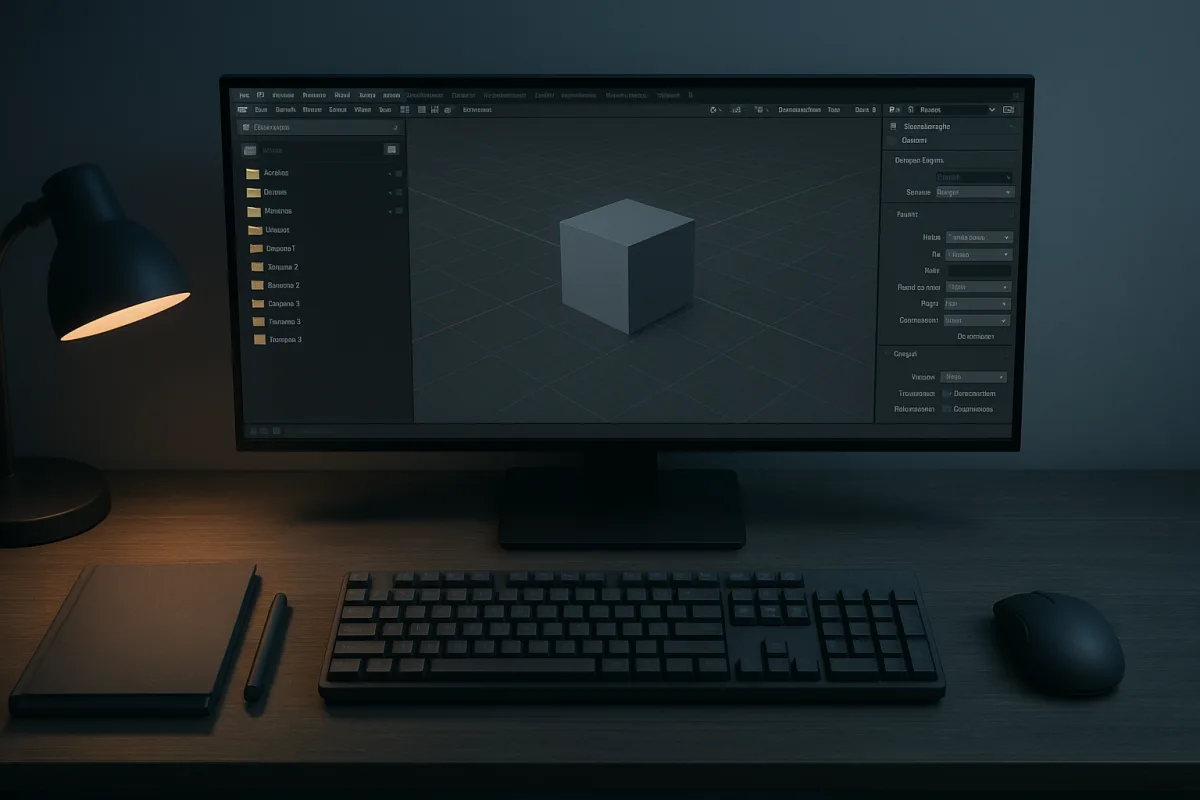
1. Begin with a project root, not a loose Blender file
The first problem usually appears before rendering: a .blend file is saved on the desktop, textures live in Downloads, and the final render goes wherever Blender last pointed. That is manageable once, then expensive to untangle.
For Blender projects, Blender Studio documents a three-part structure: local/, shared/, and svn/. The names are less important than the separation of concerns: local machine-specific material, shared temporary data, and version-controlled production files. [10]
Use that structure when you need a studio-like pipeline, multiple artists, or formal version control. For a solo still render, retain the principle even if you simplify the folders, rather than pretending every small scene needs an SVN server.
A practical solo project root might contain blender/, textures/, renders/, and reference/. That exact simplified layout is a working adaptation, not an official Blender Studio prescription, so do not present it as the only correct arrangement.
The important decision is that the .blend file, texture maps, output frames, and reference images live beneath one parent folder. When a render opens pink, you have one place to inspect before relinking paths.
Missing texture problems are commonly traced to broken external paths, and render-farm guidance on pink textures makes the same point: the renderer must be able to find every linked image and asset. [6]
2. Name files for the question you will ask later
The next failure is version ambiguity. final.blend, final_final.blend, and final_final2.blend do not tell you what changed, which asset they contain, or whether the file is safe to render.
Blender Studio’s naming guidance uses lowercase names, no spaces, underscores within a name, dashes between contexts, and increasingly specific information from left to right. It also uses dot notation for variants. [10]
A useful production pattern is type-asset-task-v001.blend. Blender Studio gives examples such as char-gabby-shading-v001.mp4 and lib-sea_shells-design-v001.kra, which show how the asset category, subject, task, and version remain legible. [10]
For example, name a working scene prop-desk_lamp-lighting-v003.blend, then create prop-desk_lamp-lighting-v004.blend before a major lighting or material change. The point is not ceremony. It is being able to recover a good render after an experiment fails.
Use a variant only when the work genuinely branches. A .warm or .client_b suffix can distinguish alternate looks without making them look like successive saves. This is a naming habit, not a topology rule.
Keep render output names equally explicit. A folder called renders/cycles_4k/ says more than output/, and a frame prefix such as desk_lamp_cycles_v004_ prevents two scenes from writing frames into the same sequence.
3. Establish scale before you place the camera and lights
Once the project can survive being moved, establish scene scale. In current Blender documentation, Scene Properties provides unit controls, and the practical baseline is Metric with Unit Scale set to 1.0, meaning one Blender unit represents one metre. [12]
Model and verify real dimensions before committing to camera composition. A table scaled like a toy and a room scaled like a warehouse can still look plausible in the viewport, but light falloff, depth of field, displacement, and camera choices become harder to judge.
Set the unit system and check object dimensions at the start, particularly for architectural work, product visualisation, or any scene receiving assets from another artist. The source material does not establish a superior Imperial or custom-unit workflow, so Metric is the supported baseline here. [12]
For a natural-looking starting camera, use a 50 mm focal length, then adjust deliberately for the composition. Do not treat 50 mm as the only honest lens. Wider lenses suit interiors, while longer lenses can flatten a product shot.
Lighting should follow the same real-world logic. Use lights positioned where fixtures or windows plausibly exist, and use Blender’s watt-based lighting controls with an eye on the scene’s real scale. Otherwise, material and exposure decisions become difficult to transfer between shots.
4. Choose Cycles or Eevee before building a render budget
Now pick the render engine, because the engine changes how quickly you can iterate and how much hardware time the project will require. Do this before filling the scene with expensive geometry, volumes, and glossy indirect-lighting situations.
Cycles is Blender’s physically based path tracer. It is the appropriate default for final work where accurate global illumination, reflections, and light transport are part of the look, but that realism comes with longer render times. [3][5]
Eevee is Blender’s real-time rasterizer. It is suited to rapid previews, stylised work, and deadline-driven output where interactivity matters more than matching all of Cycles’ lighting behaviour. Its speed is useful, but its lighting is less physically accurate. [3][4]
A sensible setup is often Eevee for early camera, palette, and composition checks, followed by Cycles for final frames. That is a workflow choice, not a rule. If Eevee produces the intended image, there is no craft prize for forcing Cycles into the job.
Make the engine visible in the file or output name when both are in play. Otherwise, an Eevee preview can be mistaken for a Cycles final, especially when a project changes hands or returns after several weeks.
5. Set output for the image you need, not the default you inherited
Before test rendering, set resolution and image format in Blender’s Output Properties. The brief recommends 3840 by 2160 for 4K stills, but resolution should match the actual delivery requirement, not a reflex to make every draft expensive. [9]
For quality-critical stills that will be graded or composited, OpenEXR is the strong choice because it supports 16-bit or 32-bit floating-point high-dynamic-range data. That preserves highlight and exposure latitude unavailable in a typical display image. [9]
For ordinary on-screen delivery, PNG in 8-bit or 16-bit form is usually suitable. JPEG is best avoided for quality-critical renders because its compression discards image information, which is particularly visible around clean gradients, fine texture detail, and repeated saves. [9]
Decide whether you are saving a working render or a finished deliverable. An OpenEXR master and a PNG review image can coexist. That separation protects the flexible source while giving clients or collaborators a file they can open immediately.
Treat colour management and compression as output decisions, not an afterthought at export. The documented guidance specifically calls for checking them, because an otherwise good render can lose expected quality through an unsuitable format, bit depth, or compression setting. [9]
6. For animation, write frames, not a single movie
Animation introduces a problem still-image artists do not meet as sharply: a failed render near the end can waste every preceding hour if Blender has been encoding one continuous video file.
Blender’s animation-rendering documentation recommends image sequences such as PNG or OpenEXR rather than direct video output. Each frame becomes an individual file, so you can rerender only the failed, changed, or noisy frames. [11]
Put the sequence in its own versioned folder, for example renders/shot_010/v003/, and give it a frame-numbered prefix. Do not place unrelated stills in that directory, because image-sequence assembly depends on clean, ordered frame names.
PNG is a practical choice for straightforward frame delivery. Use OpenEXR where compositing and significant grading are planned, since its floating-point data offers more latitude. The source does not identify a universally optimal format, so match the sequence to the downstream work. [9][11]
Encode the movie after the image sequence is complete and checked. This adds a step, but it separates rendering from delivery encoding, which is precisely why recovering from interruptions and correcting individual frames is more practical. [11]
7. Run a small render before the big one
Before committing the final resolution, render a representative frame from the hardest part of the shot. Pick the frame with reflective surfaces, soft shadows, depth of field, volume, dense displacement, or the brightest practical light source.
This identifies noise before it becomes a whole sequence of bad frames. Noise guidance specifically calls out fireflies as a source of grainy output, while render-mistake guidance warns that poor settings can create noise, pixelation, and artifacts. [7][14]
Do not solve every noisy image by raising samples without limit. First inspect the lighting, bright reflections, glossy materials, and the elements creating isolated fireflies. Then adjust settings with the image in front of you, rather than copying an arbitrary sample count.
Be cautious with clamping. The research brief warns that unsuitable clamping can reduce image contrast. It can suppress troublesome bright pixels, but it is a compromise, not a universal cleanup button. [7]
Also check what is hidden, disabled, or accidentally left in the scene. Common Blender render troubleshooting notes that hidden objects can contribute to black renders, and overcomplicated scenes increase render time without necessarily improving the final image. [8][13]
8. Plan storage and hardware around the chosen workload
A scene set up for Cycles, 4K OpenEXR output, and animation needs more than a capable viewport. Image sequences consume storage quickly, and final rendering requires substantially more sustained compute than moving objects around in solid shading.
Blender’s official recommended baseline is an 8-core CPU, 32 GB of RAM, and a GPU with 8 GB of VRAM. The listed supported operating systems include Windows 11, macOS 26 Tahoe, and Linux with glibc 2.28 or newer. [1]
For heavier rendering, Render a House recommends moving toward a 12 to 16-core CPU, 64 GB of RAM, and 16 to 32 GB of VRAM. Treat that as workload-oriented advice, not a requirement for every Blender scene. [2]
Cycles scenes with large textures, geometry, and complex lighting justify the higher target more readily than a simple Eevee animation. Hardware should follow the render engine and scene complexity, rather than being chosen by a single headline specification.
Finally, account for regional realities. High-end GPUs consume substantial power, availability of hardware such as an RTX 5090 can vary, and cloud-render access depends on internet connectivity. Sensitive client assets may also bring data-privacy obligations, including GDPR considerations.
Frequently Asked Questions
How do I organize files for a Blender rendering project?
Start with a clear project root folder that contains separate subfolders for Blender files, textures, renders, and reference images. This separation helps avoid missing textures and accidental overwrites. Keeping all related files under one parent folder makes it easier to diagnose issues like pink textures caused by broken paths.
What is the best way to set scale in Blender before rendering?
Set the unit system to Metric with a unit scale of 1.0, meaning one Blender unit equals one meter. Verify object dimensions early to ensure realistic lighting, depth of field, and camera effects. This is especially important for architectural or product visualization projects.
When should I choose Cycles vs Eevee for rendering in Blender?
Use Cycles when you need physically based, photorealistic lighting and your hardware and schedule allow for longer render times. Choose Eevee for faster iteration and stylized looks where full lighting accuracy is less critical.
How do I name Blender files to avoid confusion during rendering?
Use lowercase names with underscores within names and dashes to separate contexts, following a pattern like type-asset-task-v001.blend. Include version numbers and use variants only for genuine alternate versions. This approach helps track changes and recover previous states after experiments.
Why should I render animations to image sequences instead of video files in Blender?
Rendering to PNG or OpenEXR image sequences prevents losing an entire animation if a crash or bad frame occurs during rendering. Image sequences allow you to resume or fix individual frames without redoing the whole animation, improving reliability and flexibility.
How we researched this
This article was assembled from 14 cited references.
Nothing here is based on hands-on testing. Where a figure or finding appears, it belongs to the source cited beside it, and the writing says so rather than implying otherwise. Every source is listed below so you can check it.
Sources
- Requirements — Blender
- Blender System Requirements 2026: CPU, GPU & RAM
- [Blender] Complete Guide to Render Settings - Choosing Between Cycles and Eevee | UhiyamaLab
- Blender Eevee vs Cycles: Choosing the Right Render Engine for Your Projects | Juno School
- Blender Cycles vs Eevee Rendering: Key Differences Explained
- Fix Blender Render Farm Missing Pink Textures | iRender
- Why Your Blender Render Is Noisy — and How to Fix It
- 7 mistakes Blender users make when trying to render faster.. - Blendergrid
- How To Render & Save Image In Blender - Full Guide - TechYorker
- Folder Structure Overview | Blender Studio
- Rendering Animations - Blender 5.2 LTS Manual
- Scene Properties — Blender Manual
- Common Mistakes in Blender Video Production | 2026 Guide
- 10 Blender 3D Render Mistakes and How to Fix Them!
Related Articles
Blender File Management Tips for Organized Projects
Learn Blender file management tips to organize projects, name files clearly, use relative paths, and manage backups effectively.
Blender Project Setup for Animation: Best Practices
Learn how to set up a Blender project for animation with proper folder structure, naming, frame rate, and collaboration tips.
Best Practices for Rendering Animations in Blender
Learn the best practices for rendering animations in Blender, including sample settings, adaptive sampling, denoising, and output formats.
Realistic Fire Effect in Blender
Learn how to create a realistic fire effect in Blender using Mantaflow, shaders, lighting, and simulation tips for photorealistic results.