
Fix Blender Crashing Issues: Troubleshooting and Solutions
Learn how to fix Blender crashing issues with practical troubleshooting tips for rendering, files, add-ons, and hardware problems.
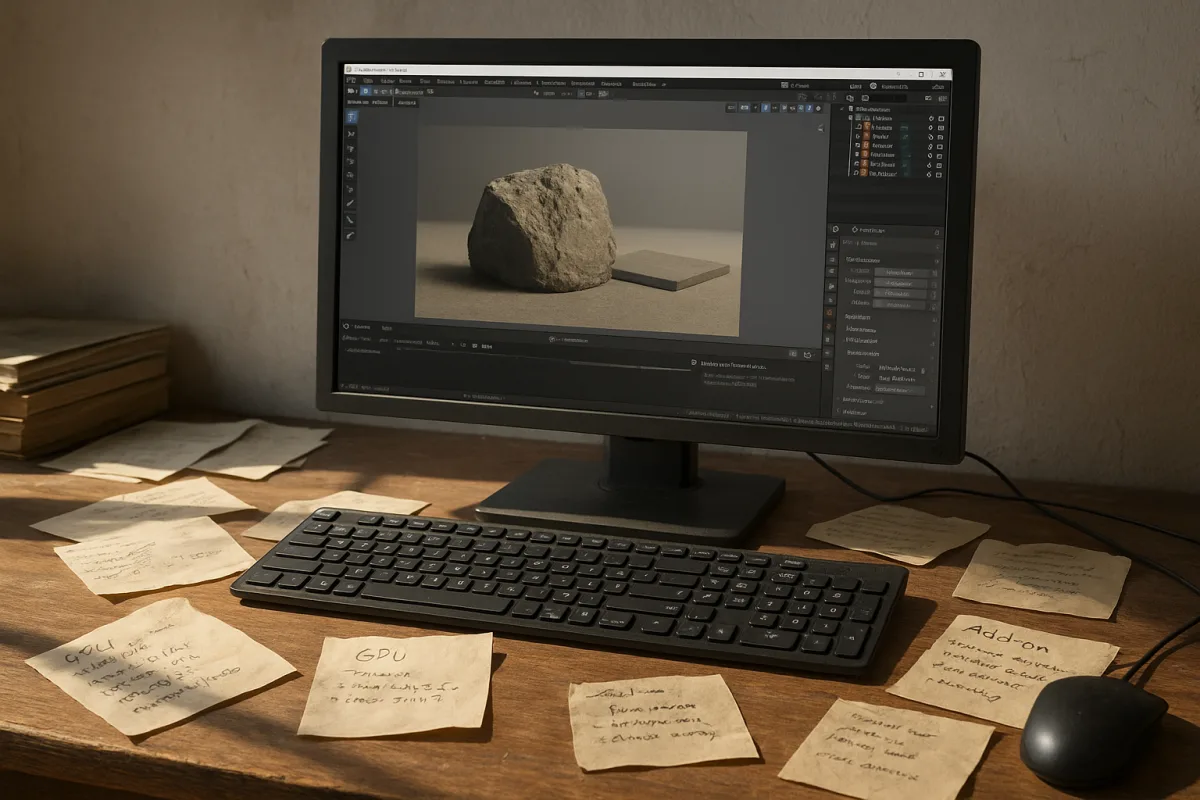
The useful question is not “why did Blender crash?”
I am writing here about Blender 5.2 LTS, released in July 2026. The menus and rendering backends matter, but the underlying diagnostic idea applies across releases: a crash is useful once you establish what reliably triggers it. [8][10]
“Blender crashed” describes the result, not the cause. A crash while opening every file suggests a different fault from a crash that appears only when Cycles starts rendering one interior scene with high-resolution textures and dense scatter geometry.
The practical job is to find the boundary between stable and unstable work. In other words: what changed immediately before failure, and can you make the failure happen again with one controlled test?
That sounds less satisfying than reinstalling, but it is faster. A clean installation cannot repair an overloaded GPU, an unstable driver, a damaged .blend file, or an add-on that Blender loads again from your user configuration.
A crash usually belongs to one of four states
Think of Blender as working through four states: the application itself, your user configuration, the scene file, and the hardware or driver layer. The same visible crash can originate in any one of them.
The application state is Blender’s version and its known bugs. Blender 5.2 LTS includes fixes for crashes affecting areas including Geometry Nodes, the Video Sequence Editor, and Armature Edit Mode, making an update a sensible first move when you are on an older build. [8][10][11]
The configuration state includes preferences, startup settings, scripts, extensions, and add-ons. This matters because Blender can appear freshly installed while still loading the same problematic extension, keymap, or user-level setting.
The scene state is everything stored in the file: linked assets, modifiers, image textures, geometry, simulations, render settings, and possibly corruption introduced during an interrupted save. If only one file fails, start by suspecting the file.
Finally, hardware and driver state governs the work Blender asks the system to do. Insufficient RAM or VRAM, plus outdated or incompatible GPU drivers, remain the major crash causes across Windows, macOS, and Linux. [1][2][8]
This is why generic advice often disappoints. Resetting preferences is relevant to configuration state. It is not a cure for a Cycles scene exceeding GPU memory, and it does not make a corrupt file structurally sound.
First, separate the file from Blender itself
Before changing drivers, deleting settings, or rebuilding a workstation, create a new blank file in the same Blender version. Save it, reopen it, orbit the viewport, add a primitive, and make a small render.
If that simple file is stable, Blender can start, save, draw the interface, and render on that machine. That does not prove every subsystem is healthy, but it moves attention toward the original file, its assets, its render workload, or loaded add-ons.
Then open the failing file without immediately rendering. Save a copy under a new name before experimenting. If the file crashes during opening, use Blender’s recovery options to try an autosave or an earlier version rather than repeatedly forcing the damaged file open.
If it opens, isolate the operation. Does it crash when entering Rendered view, when a particular texture loads, when a Geometry Nodes modifier evaluates, or only after pressing Render? Each answer removes a large amount of guesswork.
This is the same discipline used in look development. If a material breaks after adding one triplanar projection node, you do not rebuild every shader in the scene. You bypass that node and see whether the problem follows it.
Memory is the limit most artists can actually control
RAM is system memory. VRAM is the memory on the graphics card. Blender uses both, but the distinction becomes critical in GPU rendering, heavy viewport scenes, texture-rich assets, simulations, and geometry systems with many unique objects.
Blender’s published minimum is a four-core CPU with SSE4.2, 8 GB of RAM, and a 2 GB VRAM GPU supporting OpenGL 4.3 and Vulkan 1.3. Those figures define basic compatibility, not comfortable production headroom. [2]
The more realistic recommendation in the 2026 research is an eight-core CPU, 32 GB RAM, and 8 GB VRAM. Heavy rendering, simulation, or large asset work may call for 64 to 128 GB RAM and 16 GB or more of GPU memory. [3]
What makes memory failures confusing is that the scene may look modest. A single sculpt can contain millions of vertices. A set of 4K or 8K texture maps consumes memory beyond what their folder sizes imply once decoded.
Instances are generally cheaper than unique meshes, but they are not free. Volumes, displacement, subdivision, particles, hair, simulations, light probes, and high sample counts all add work, sometimes at the point the renderer prepares the scene rather than when you first inspect it.
When a render crashes, lower one expensive category at a time. Reduce texture resolution, simplify or instance repeated assets, lower subdivision at render time, trim unnecessary volumes, and test with a smaller output resolution. Preserve a copy of the original settings.
This is not merely a workaround. It tells you whether resource demand is the trigger. If the reduced scene renders and the full scene does not, the important fix is a production budget, not an application reinstall.
Test the renderer without assuming the renderer is guilty
Cycles and Eevee have different workloads and different limitations. GPU memory limits, Eevee light-probe constraints, and volumetric complexity can all turn a scene that looks acceptable in a basic viewport into a failed render. [1][8]
A useful diagnostic is to render a small frame range or a still at reduced resolution. Then test the same scene using CPU rendering if the project deadline permits. It will be slower, but it helps separate GPU and driver trouble from scene-level trouble.
If CPU rendering succeeds while GPU rendering crashes, do not immediately conclude the GPU is defective. You may be exceeding VRAM, using a problematic driver release, or encountering a backend-specific issue. The next test should change only one of those variables.
Blender’s documentation specifically records Windows Vulkan-related crash reports, including window resizing artifacts and lag. The available research does not establish matching macOS or Linux-specific patterns, so it would be speculation to prescribe platform-specific fixes there. [8][9]
On Windows, switching the graphics backend from Vulkan to OpenGL is a worthwhile diagnostic when viewport or interface crashes appear driver-related. If OpenGL is stable, retain that evidence when filing a Blender bug report or choosing a driver version. [5][7][9]
Monitor GPU temperature and power behavior while reproducing a render crash. A failure that arrives under sustained render load but not during basic modeling can indicate a graphics subsystem problem beyond Blender itself. [5][6]
Some Windows users also report improvement after disabling Hardware-Accelerated GPU Scheduling, usually called HAGS. That is user-report evidence, not an official Blender guarantee, so treat it as a reversible test rather than a universal stability setting. [5][7]
Add-ons are code, not harmless checkboxes
An add-on can alter Blender’s interface, register handlers that run when files load or save, inspect scene data, generate geometry, and hook into render or export processes. That power is why an outdated add-on can cause instability after a Blender update.
Start with the failing file and disable nonessential add-ons. Reopen Blender, reproduce the same action, then re-enable extensions in small groups until the crash returns. This is slower than toggling everything randomly, but it identifies the actual conflict.
Project LEUC’s extension-management guidance goes beyond the usual “disable unused add-ons” advice. It recommends monitoring extension performance with debug tools, keeping the active set modest, and considering delayed loading for tools that are not needed at startup. [4]
A suggested range of fewer than 15 to 30 active add-ons is a working habit, not a Blender rule. Responsiveness and stability depend on what those add-ons do, the Blender version, and the machine, not simply the number shown in Preferences. [4]
I would be especially suspicious of an add-on if the crash begins after updating Blender but before changing the scene. Blender’s Python and API environment evolves, and an add-on that worked in an earlier release can require its own compatibility update.
Do not delete the add-on before recording its version, Blender version, and the action that causes the failure. Those details are what the extension developer, Blender bug tracker, or your studio’s technical artist needs to reproduce the fault.
Update deliberately, not endlessly
Blender 5.2 LTS is the sensible baseline for stability-focused work in August 2026 because its long-term-support release includes targeted crash fixes. It is not evidence that every rendering engine, driver combination, or third-party extension is now crash-free. [8][10][11]
Likewise, “update the GPU driver” is good first-line advice, but not a diagnosis. Install a current driver from the GPU manufacturer, test Blender again, and note whether the crash began after a previous driver update.
If a current driver worsens a reproducible crash, test a known-stable driver branch where your IT policy permits. The point is not to chase the newest version forever. The point is to establish a stable Blender, driver, and render-backend combination.
Storage deserves a narrower claim. Blender does not publish a minimum storage requirement in its official requirements, but an SSD is a practical recommendation for loading files, caches, and textures. There is no evidence here for a specific SSD capacity as a crash fix. [2]
When to reset, reinstall, or report the problem
Reset preferences only after you have evidence that a clean startup configuration changes the result. It is useful when Blender crashes before loading a scene, after a preference change, or with an interface-related fault that persists across new files.
Reinstall Blender when files, settings, or program components are genuinely missing or damaged. It is not the efficient first response to a crash confined to one project, one GPU render path, or one add-on-enabled workflow.
A good bug report is effectively your troubleshooting record. Include the exact Blender version, operating system, GPU and driver version, render engine and backend, active add-ons, a clear reproduction sequence, and whether a new file behaves differently.
For a project file that crashes only at render time, also include the render device, output resolution, samples, use of volumes, and whether CPU rendering works. Those details describe the boundary that determines the outcome, which is what turns “Blender keeps crashing” into a fixable problem.
Frequently Asked Questions
How do I fix Blender crashing during rendering?
If Blender crashes during rendering, start by reducing the scene’s RAM and VRAM demands, such as lowering texture resolution or simplifying geometry. You can also test rendering the same scene on the CPU or switch to a different graphics backend to isolate GPU-related issues. Updating to Blender 5.2 LTS is recommended, as it includes fixes for rendering stability.
Why does Blender crash when opening certain files?
Crashes when opening specific files often indicate problems with the file itself, such as corrupted data or problematic linked assets. Use Blender’s recovery options to open autosaves or earlier versions of the file. If the file opens, isolate the operation causing the crash, like entering Rendered view or evaluating a modifier, to identify the trigger.
What causes Blender to crash on startup and how to fix it?
Startup crashes can originate from the application version, user configuration (preferences, add-ons), or hardware/driver issues. First, update to Blender 5.2 LTS to benefit from recent crash fixes. Then try disabling add-ons or resetting preferences, as problematic extensions often cause crashes on startup. Also, ensure your GPU drivers are up to date and compatible.
How can I troubleshoot Blender crashes related to add-ons?
Rather than reinstalling Blender, disable unused add-ons and test with a minimal active set to identify conflicts. Monitoring add-on performance with debug flags and limiting active add-ons to fewer than 15–30 can improve stability. Avoid loading all add-ons at once and consider delayed loading tools to reduce crash risk.
How do I reduce memory usage to prevent Blender crashes?
To reduce memory usage, optimize your scene by lowering texture resolutions, simplifying geometry, and reducing the number of unique objects. Blender requires a minimum of 8 GB RAM and 2 GB VRAM, but for stable performance, 32 GB RAM and 8 GB VRAM or more are recommended. Heavy workloads may need even higher specs, so upgrading hardware can prevent crashes related to insufficient memory.
How we researched this
This article was assembled from 11 cited references.
Nothing here is based on hands-on testing. Where a figure or finding appears, it belongs to the source cited beside it, and the writing says so rather than implying otherwise. Every source is listed below so you can check it.
Sources
- Blender Crashes When Rendering: The Full Troubleshooting Checklist | Blender Render farm
- Requirements — Blender
- Blender Review 2026: Free 3D Software That Replaces Maya and Cinema 4D
- How to Manage Blender Extensions | Project LEUC
- GPU Driver Crash During Rendering: 3 Fixes That Work | Erropedia
- Blender freezes, and the entire PC freezes with it until it is restarted - #46 by BlenderSL - Technical Support - Blender Artists Community
- How to Fix Blender Crashing on Windows 11 - TechBloat
- Crashes - Blender 5.2 LTS Manual
- #159523 - Resizing windows lags and has artifacts with Vulkan - blender - Blender Projects
- Corrective Releases - Blender Developer Documentation
- Winter of Quality 2026 — Blender Developers Blog
Related Articles
Best Computer Specs for Blender: CPU, GPU, RAM & Storage
Discover the best computer specs for Blender in 2026, including CPU, GPU, RAM, and storage recommendations for optimal 3D modeling and rendering.
Best Practices for Rendering Animations in Blender
Learn the best practices for rendering animations in Blender, including sample settings, adaptive sampling, denoising, and output formats.
Realistic Fire Effect in Blender
Learn how to create a realistic fire effect in Blender using Mantaflow, shaders, lighting, and simulation tips for photorealistic results.
Octane vs V-Ray Architectural Rendering: Which to Choose?
Compare Octane and V-Ray for architectural rendering to find the best fit for your hardware, workflow, and project needs.